Setting up MetaSeek
The video guide below outlines how to set up MetaSeek in Shopify Admin and POS:
Following the steps below to correctly set up MetaSeek in Shopify Admin and POS:
Step 1: Activate a subscription plan
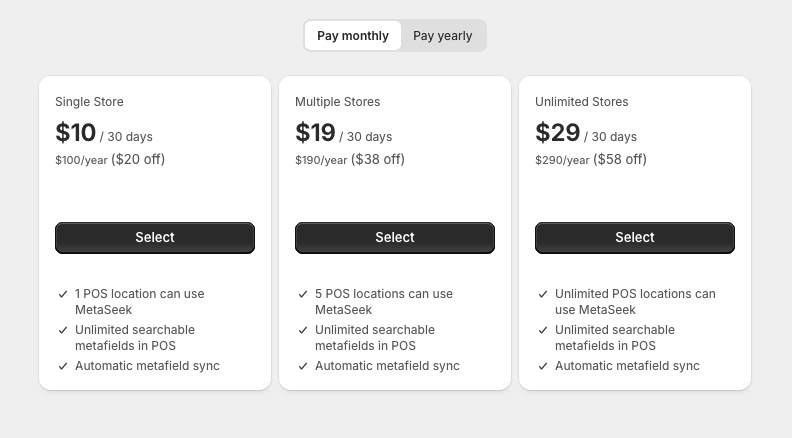
After installing MetaSeek, you'll automatically be asked which plan you'd like to subscribe to. Select a plan, based on how many POS locations you'd like to have access to MetaSeek.
MetaSeek requires all merchants to active a subscription to access search features - each plan includes a 7 day trial to test MetaSeek! Find our more about our subscriptions here.
Step 2: Select active locations
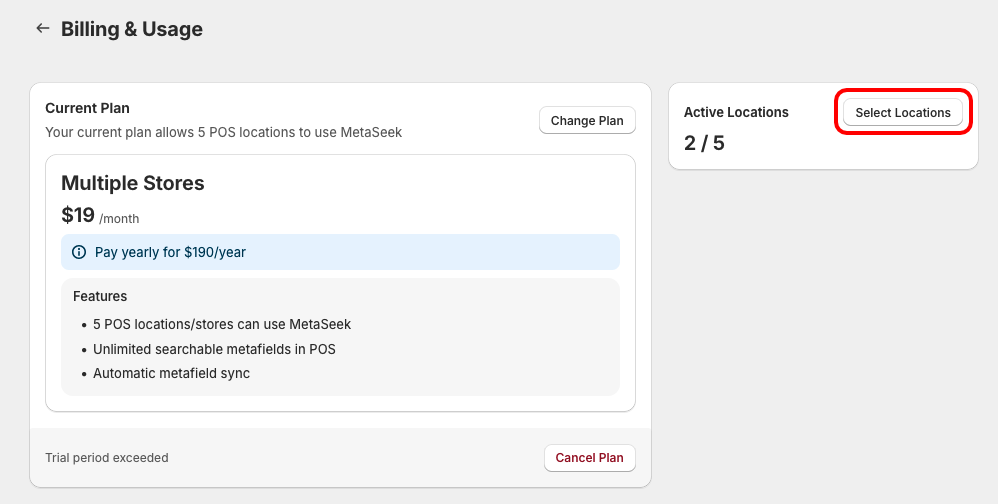
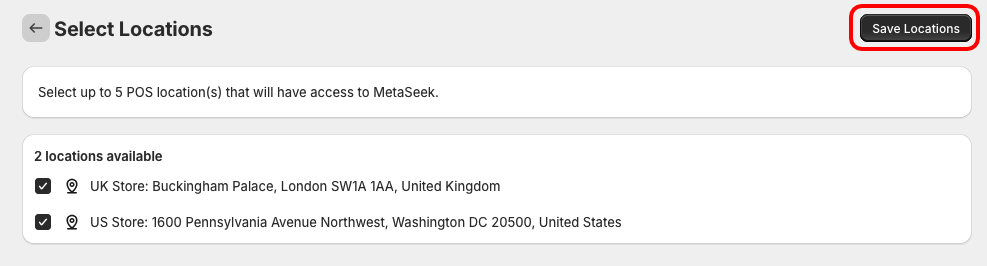
Choose the POS location(s) that will have access to MetaSeek - the maximum number of allowed active locations is determined by your subscription plan.
Head to the Billing & Usage page in the MetaSeek Shopify Admin app, and then click Select Locations. Select which locations you'd like to have access to MetaSeek, and click Save Locations.
Step 3: Add MetaSeek to you POS device
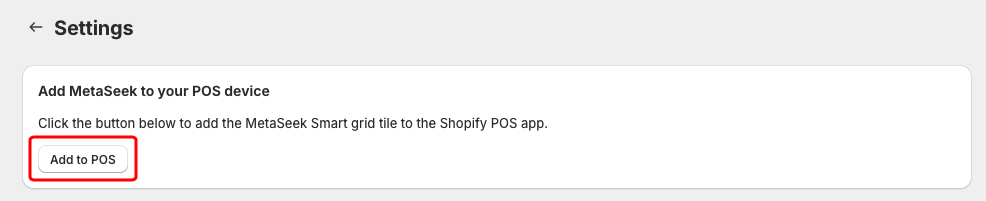
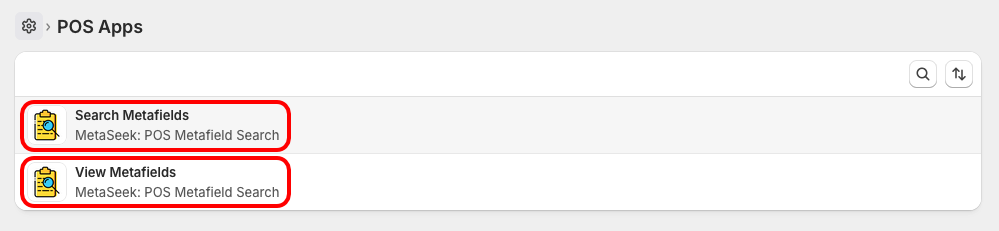
To use MetaSeek on your POS device, add the MetaSeek Search & View smart grid tiles to the Shopify POS app.
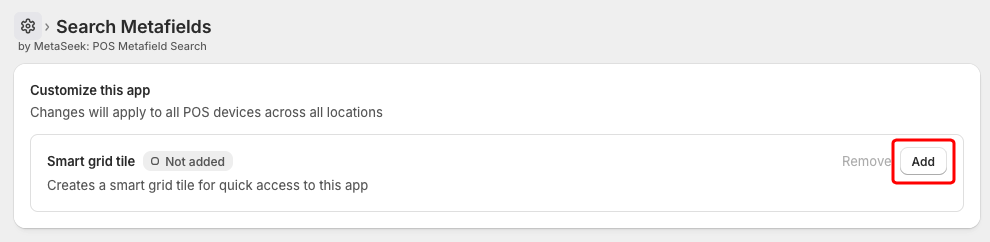
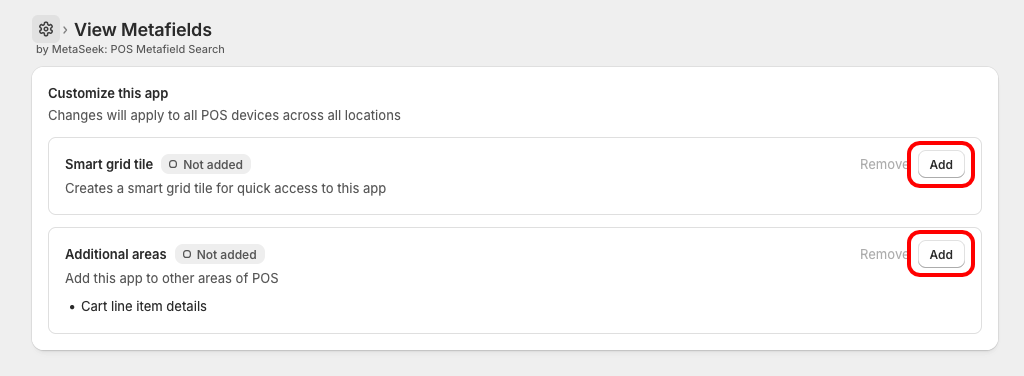
Head to the Settings page in the MetaSeek Shopify Admin app, and then click Add to POS. Click Search Metafields, and click the Add button next to Smart grid tile. Return to the previous screen, and click View Metafields, and click the Add buttons next to Smart grid tile and Additional areas.