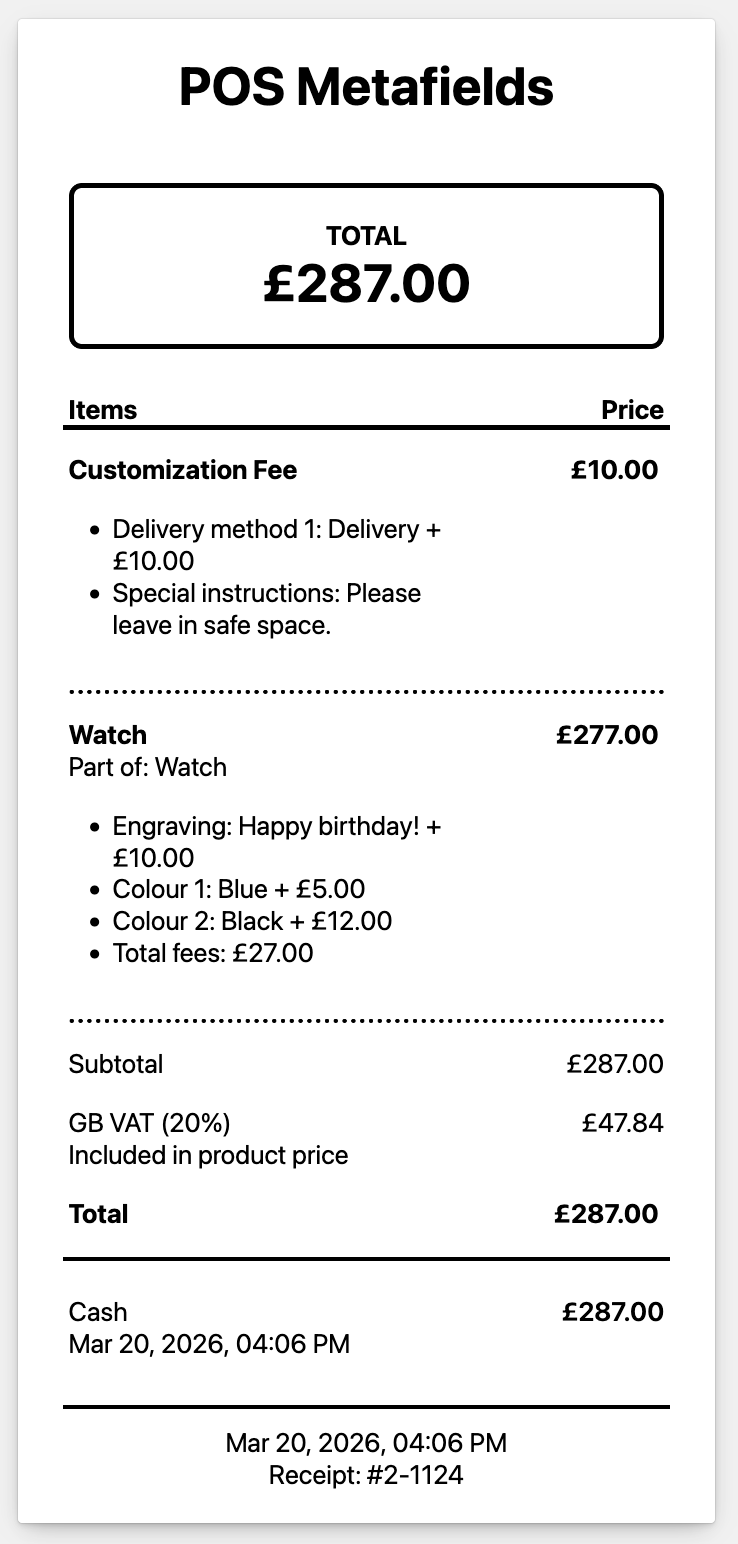
Customization Fees
Stores can add fees to customization fields, which will automatically be added to the product in POS.
Enabling fees
To enable the fee feature, head to Settings, and toggle the Enable fees setting:

Adding fees to cart and product customization fields
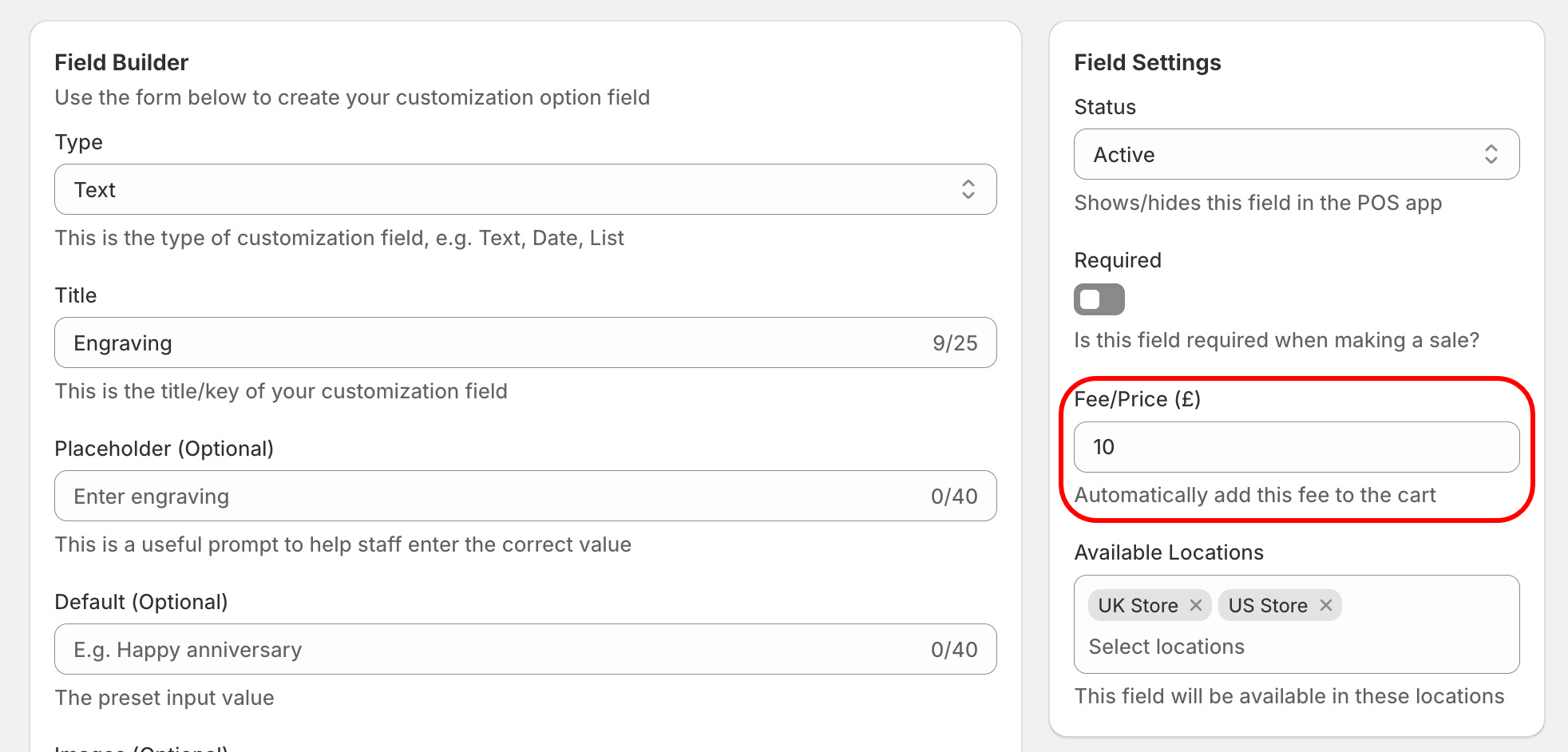
When creating a cart or product customization field, enter the total fee (to 2 decimal places) into the Fee field in the Field Settings panel:
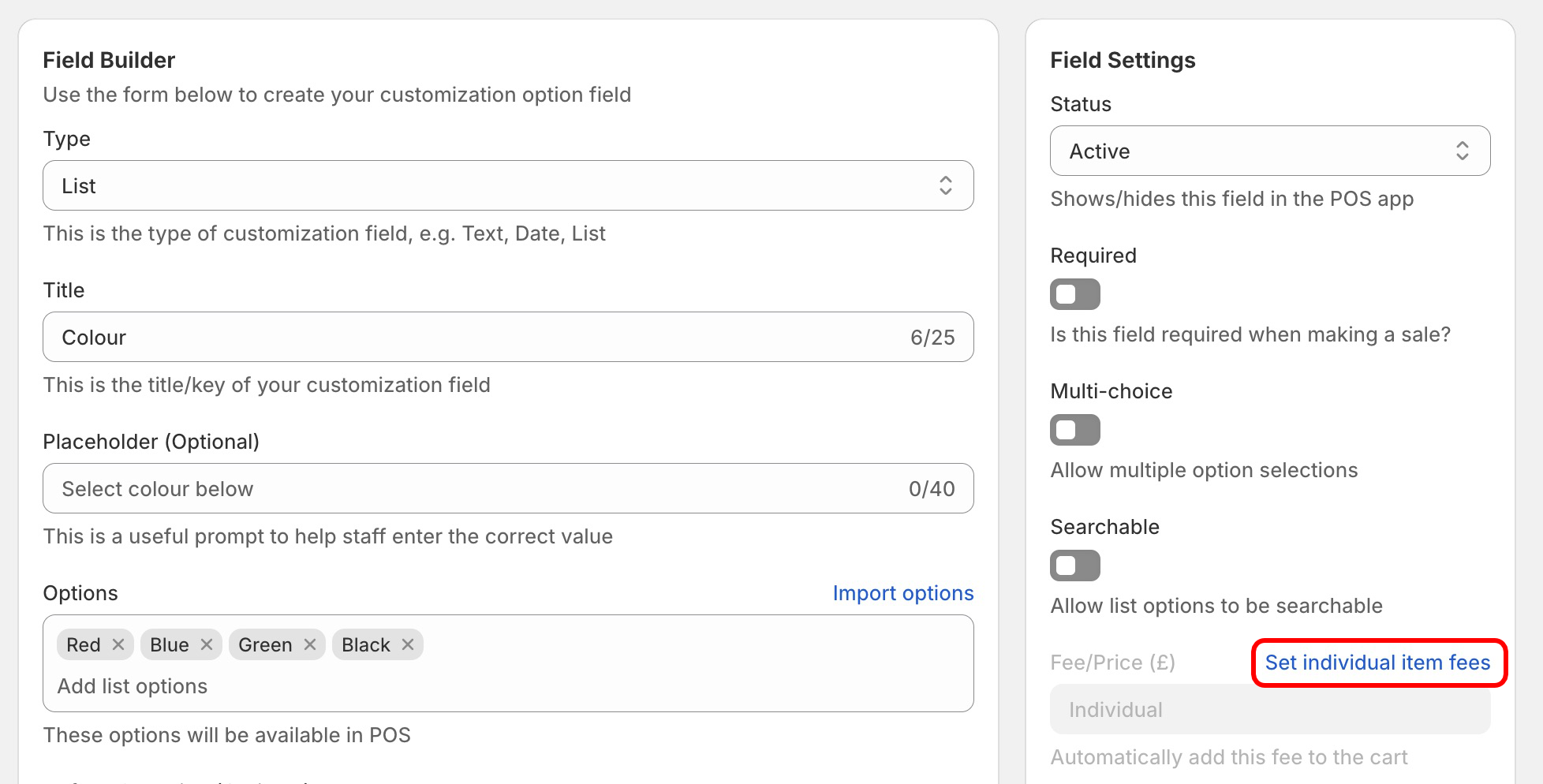
If you are creating a list field, you are able to set individual fees for each list item. Simply click the Set individual item fees button next to the Fee field:
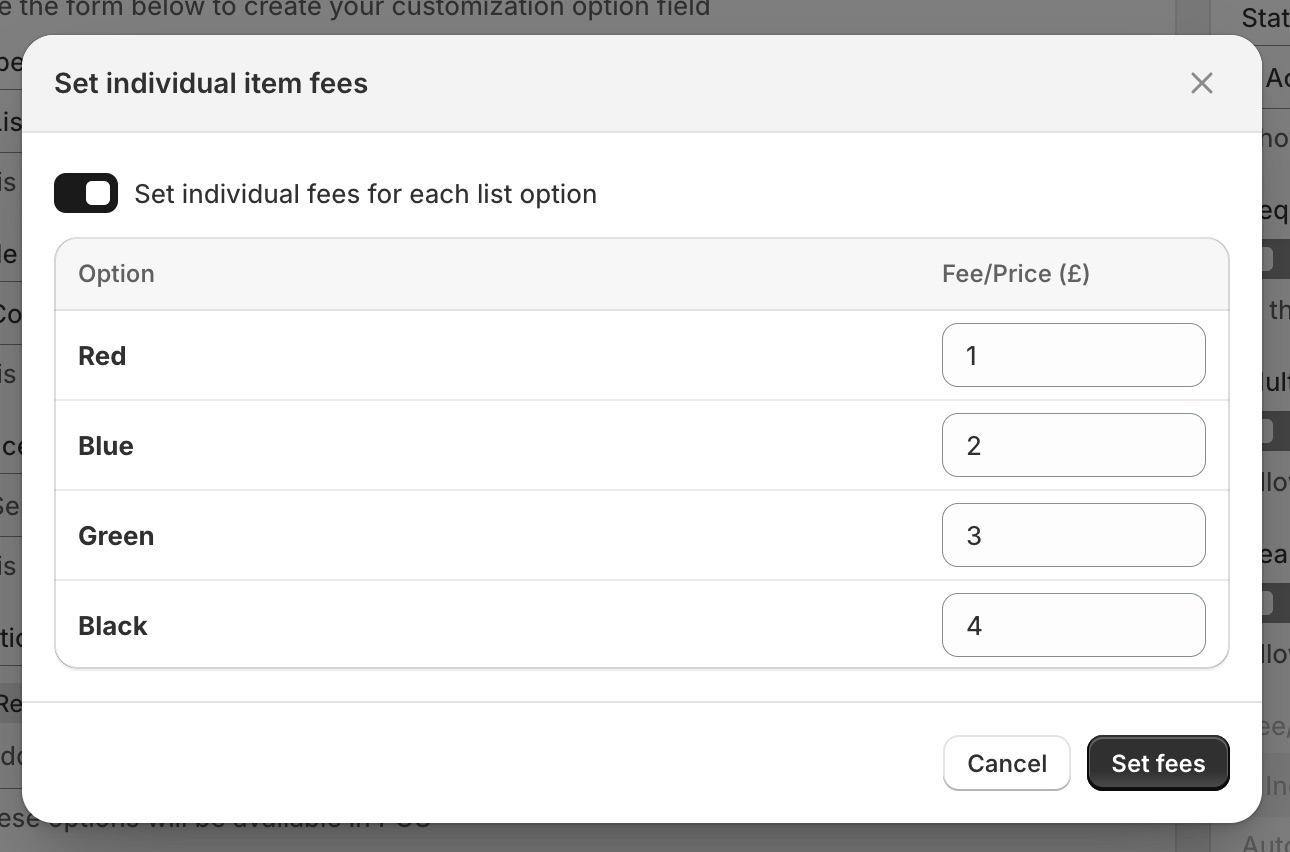
Next, toggle the Set individual fees for each list option setting, enter the correct fees, and click set fees:
Adding fees to products in POS
In the POS app, when you add a value to a product customization field with a fee, the fee becomes active:
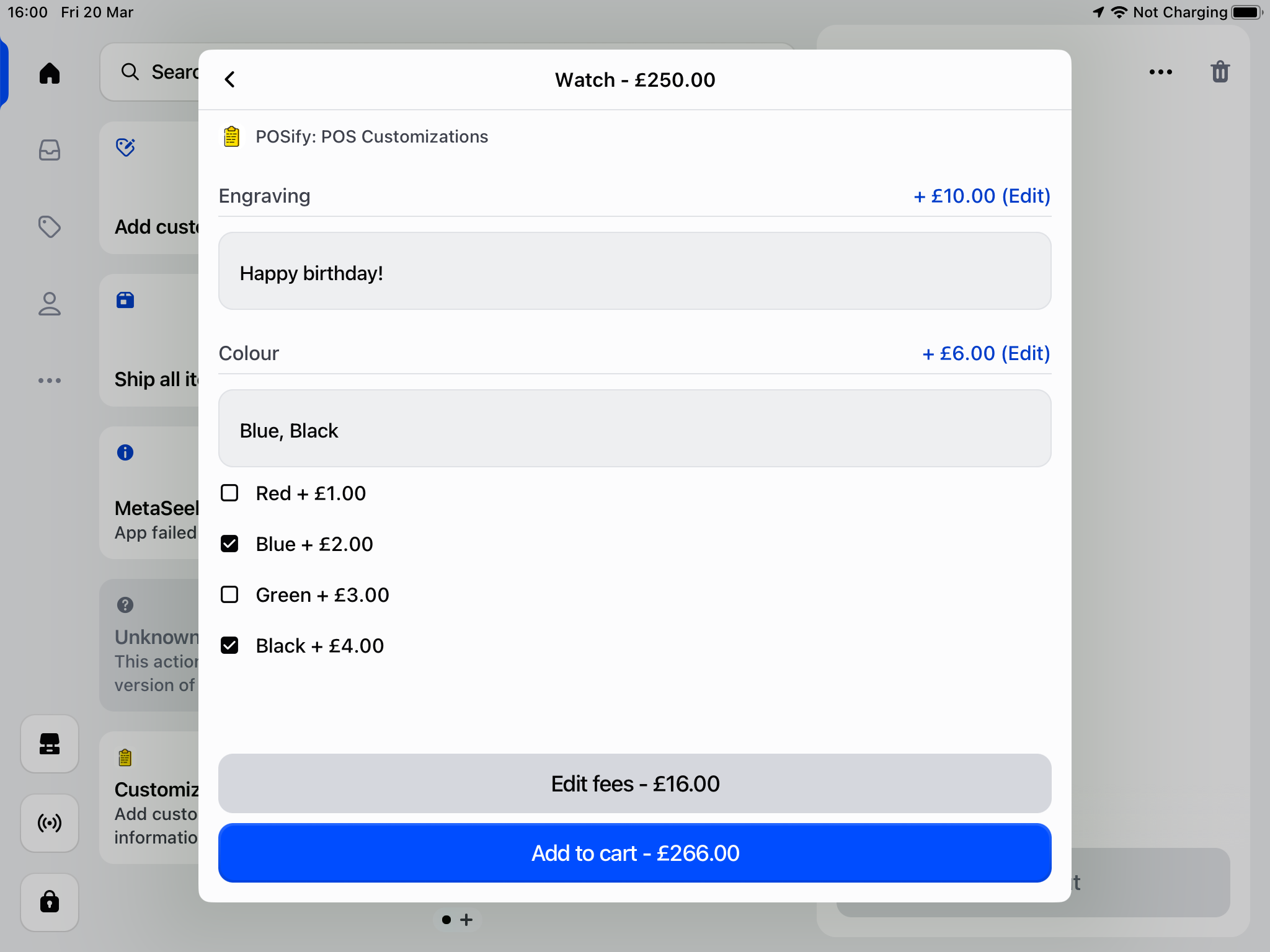
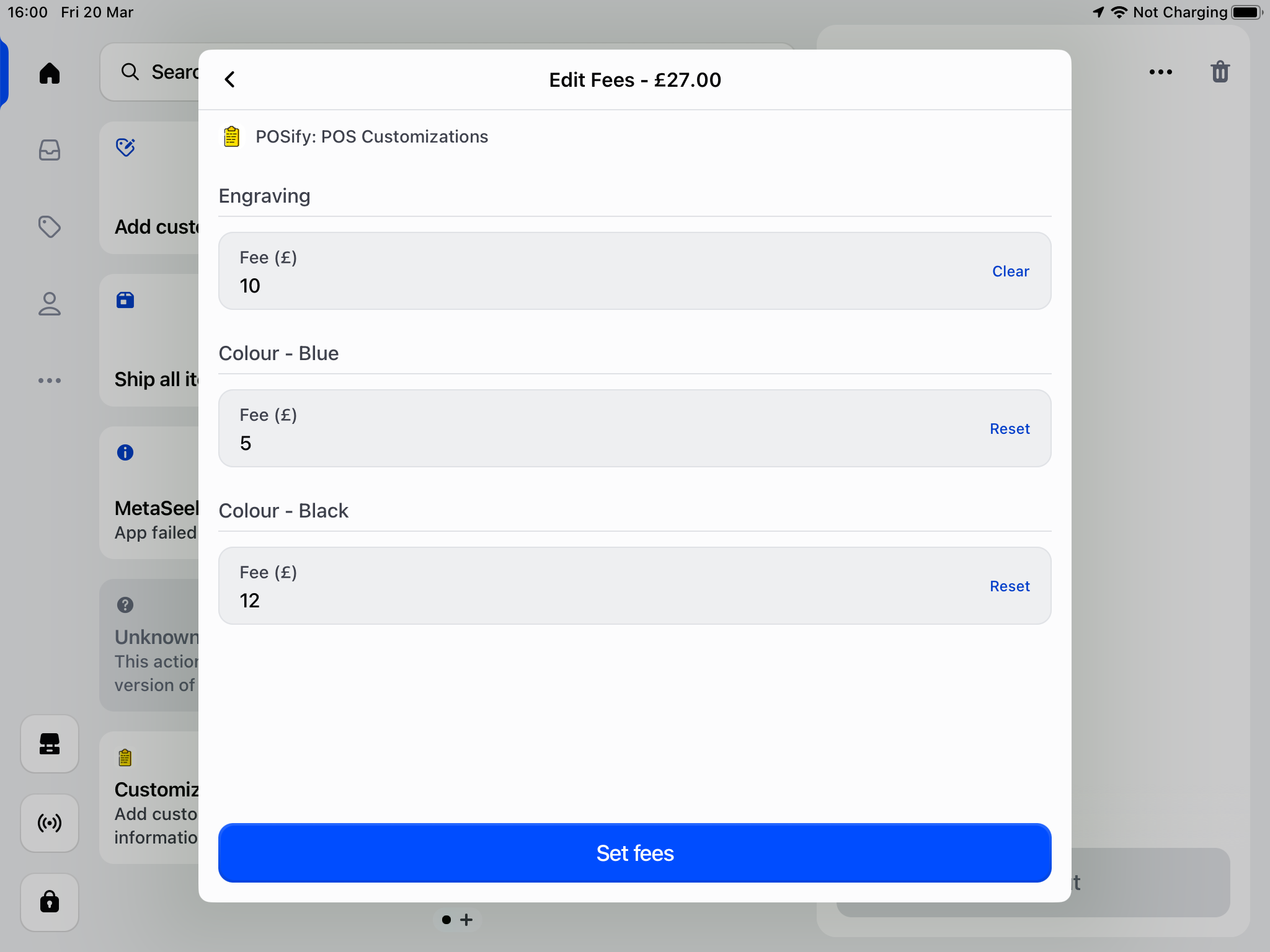
You can edit the fee in real time, by click the the Edit button next to the fee. Alternatively, click the Edit fees button to edit all of the fees:
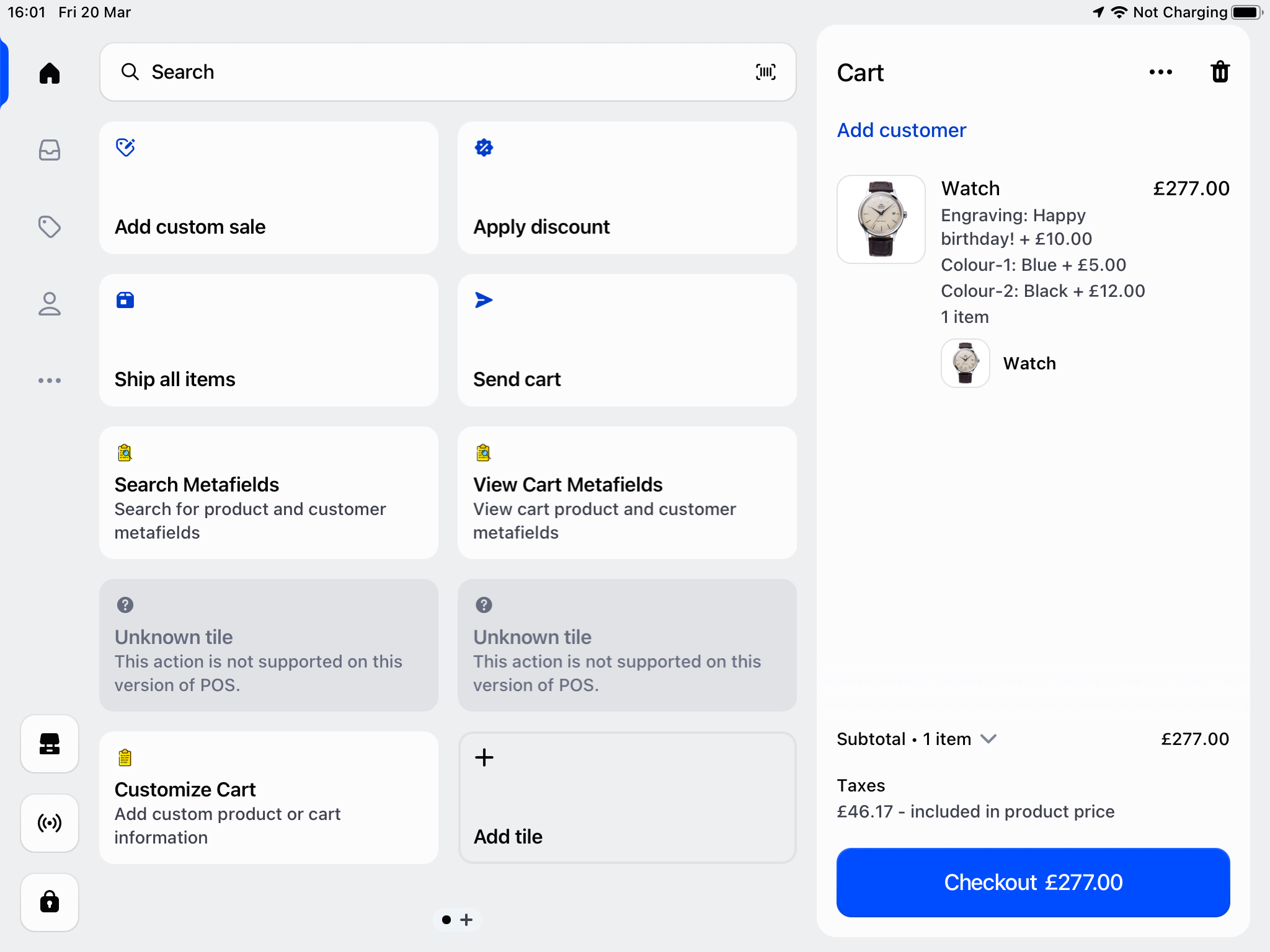
When the product is then added to the cart, the fees are automatically added to the price:
Accessing the fees
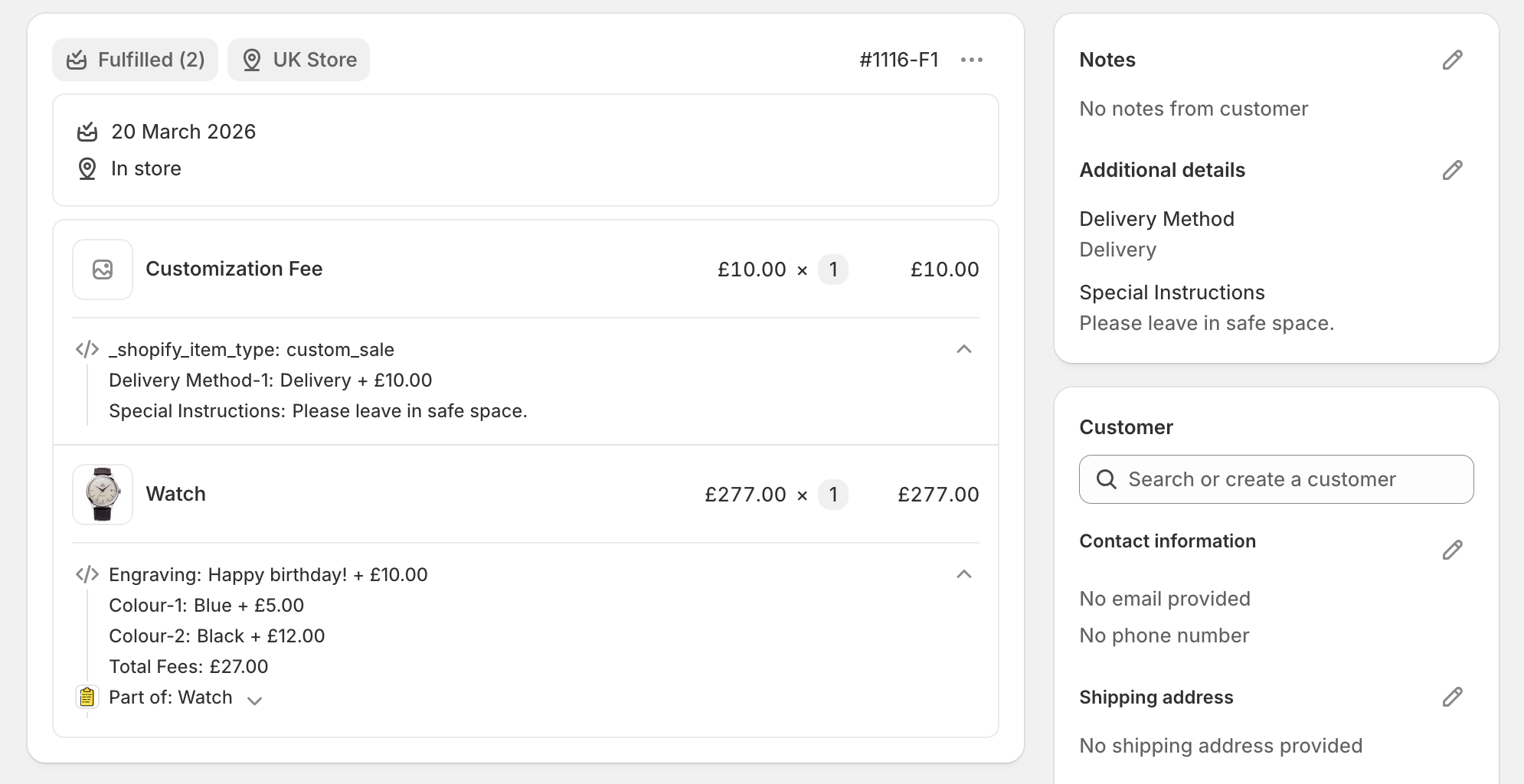
The fees are visible on the order in Shopify Admin:
The fees are also visible on the customer receipt: