Viewing Cart Product Metafields in POS
To be able to view product metafields in Shopify POS, ensure you have imported your metafield definitions and values into MetaSeek.
The video guide below outlines how to view cart product metafields in the MetaSeek POS app.
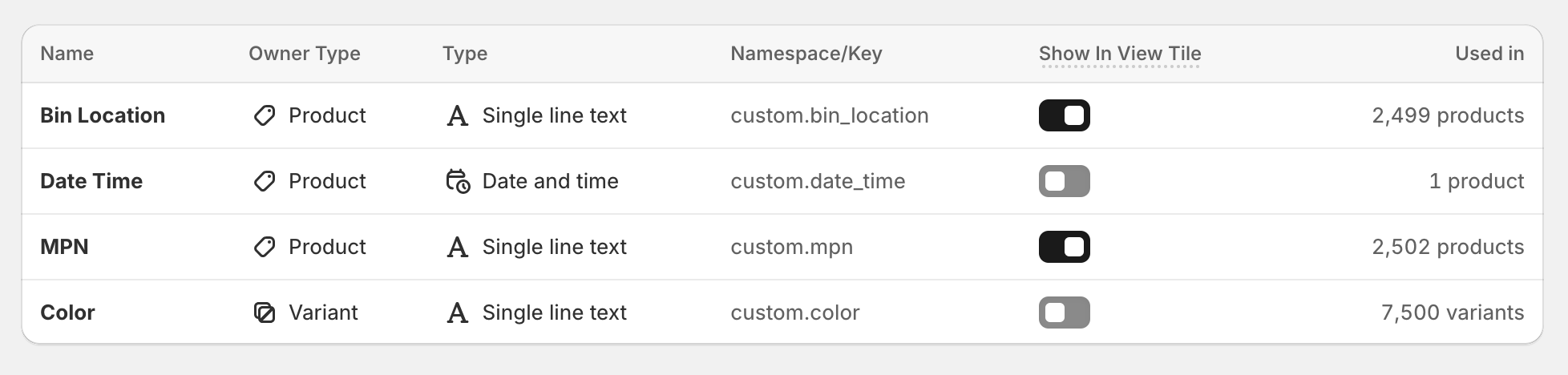
In the MetaSeek Shopify Admin app, you can set whether a metafield should be visible in the Metaseek POS app, by toggling the Show In View Tile setting:
Viewing cart product metafields via POS Tile
Ensure that you've correctly set up MetaSeek in Shopify POS.
Follow the instructions below to quickly view the metafields of the products added to the cart, using the MetaSeek smart grid tile:
-
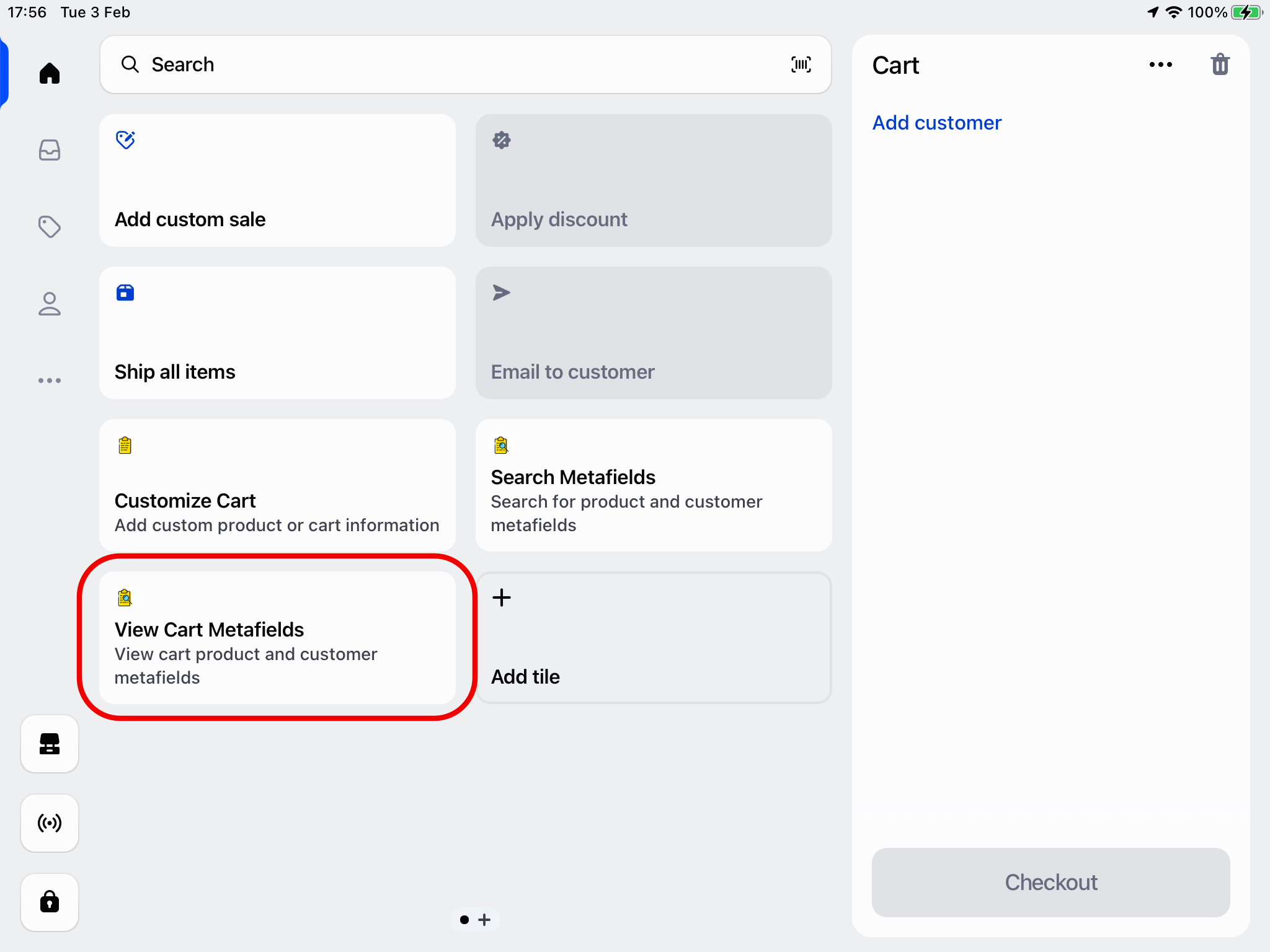
Open the MetaSeek POS app by clicking the View Cart Metafields POS smart grid tile
-
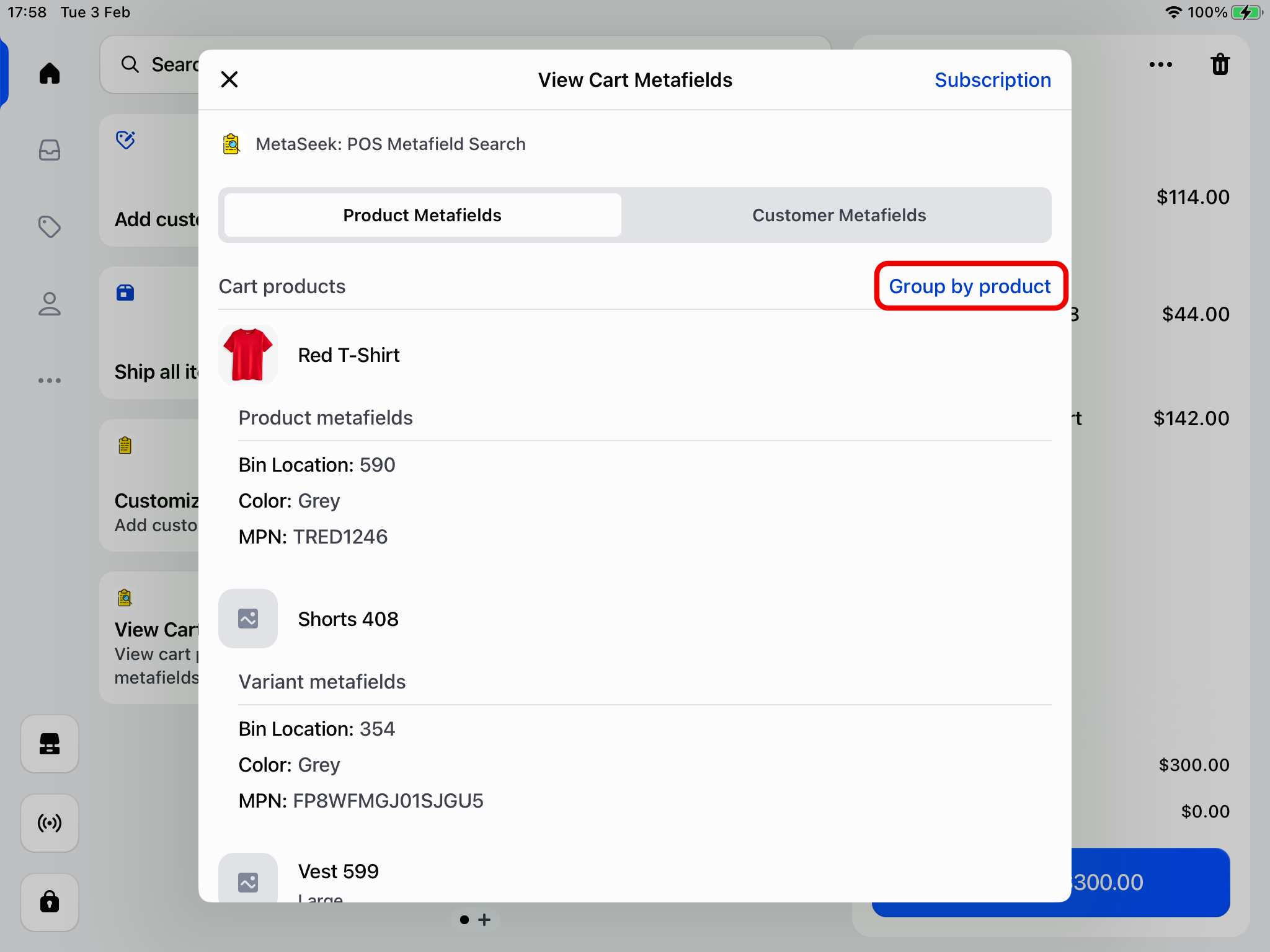
Each of the products in the cart will be listed below, along with their metafields. If you'd prefer to group the products together, click the Group by product button
-
This will list all of the products in the cart - select a product from the list
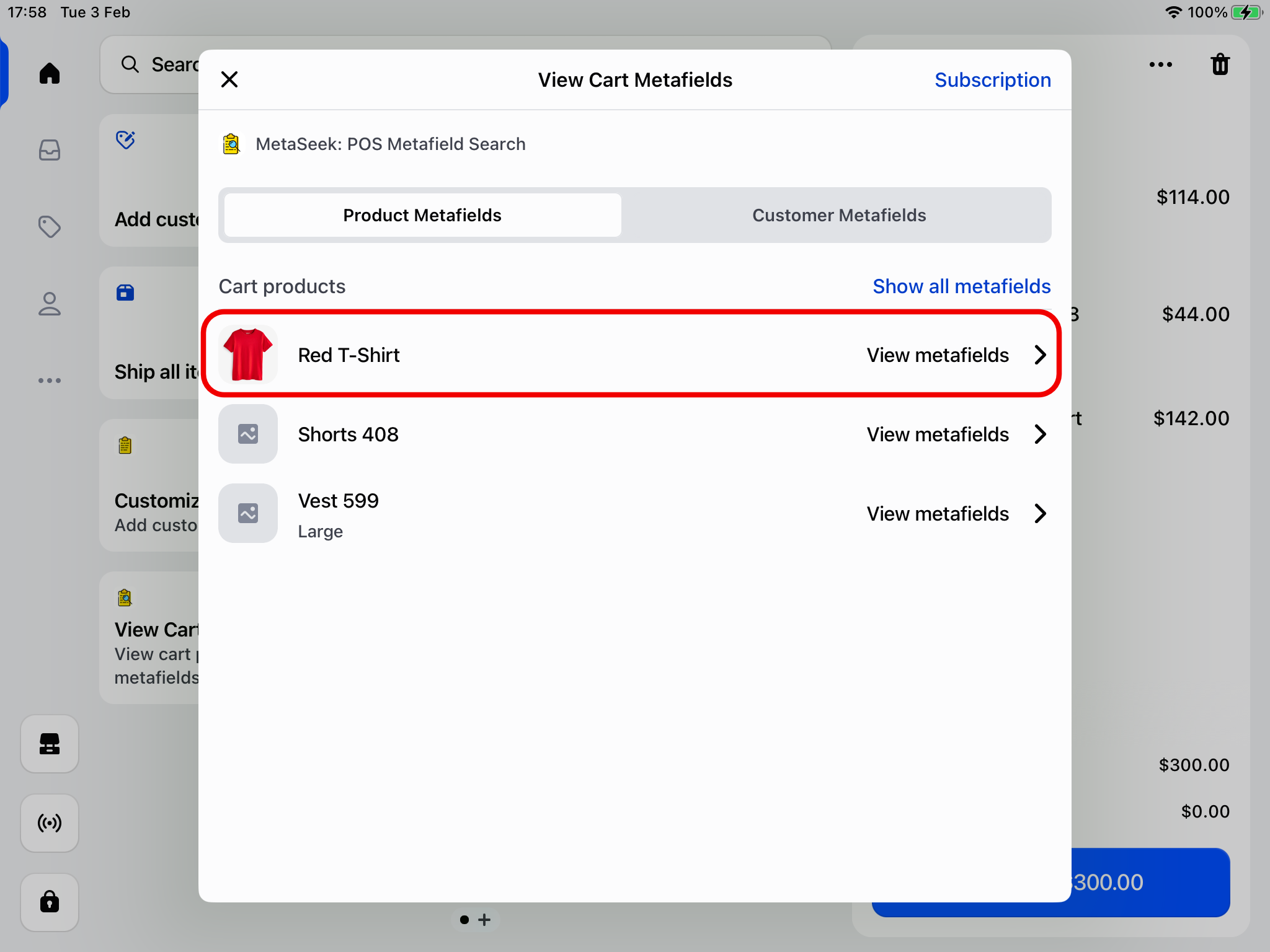
-
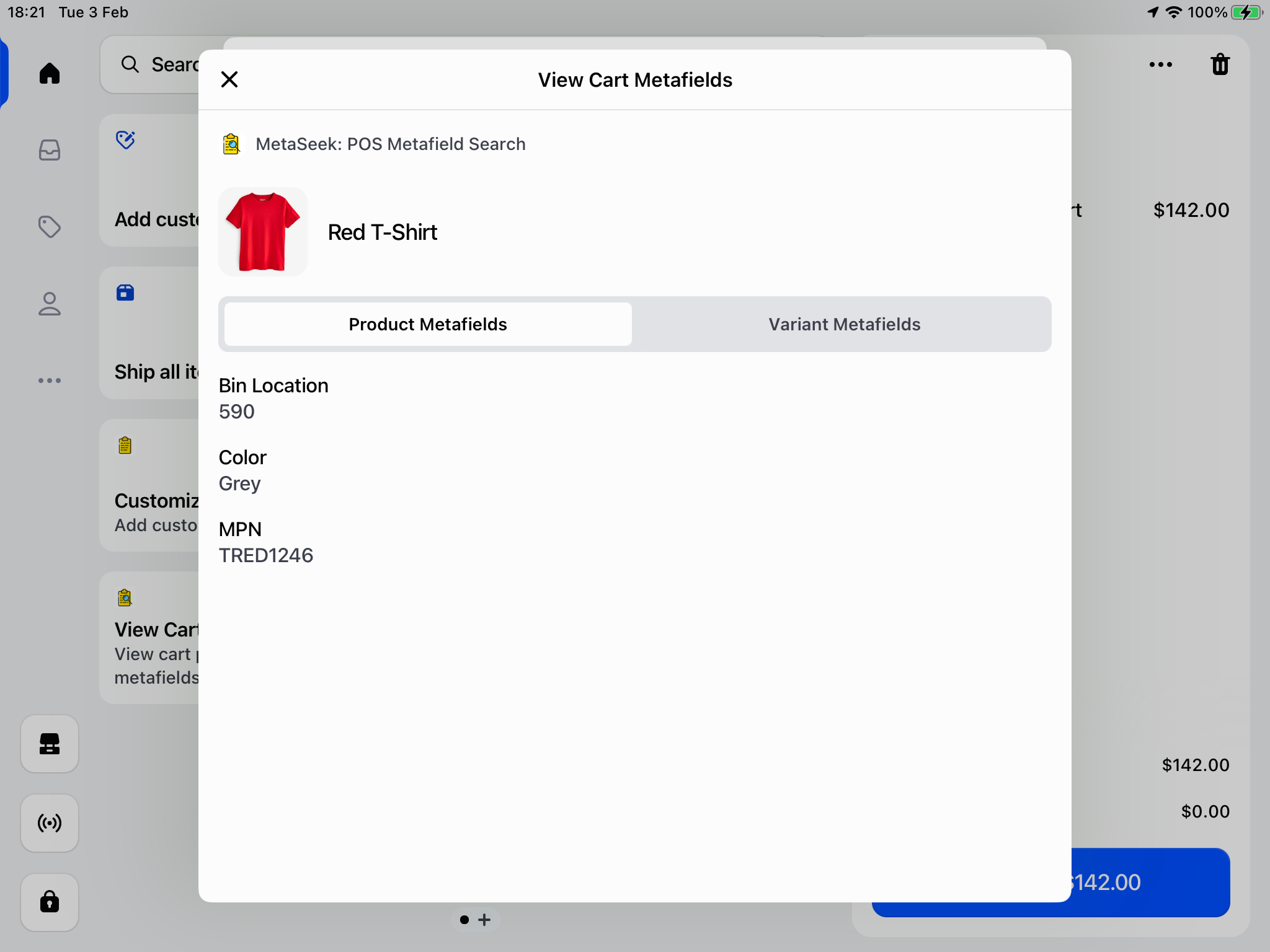
The product and variant metafields will be listed below
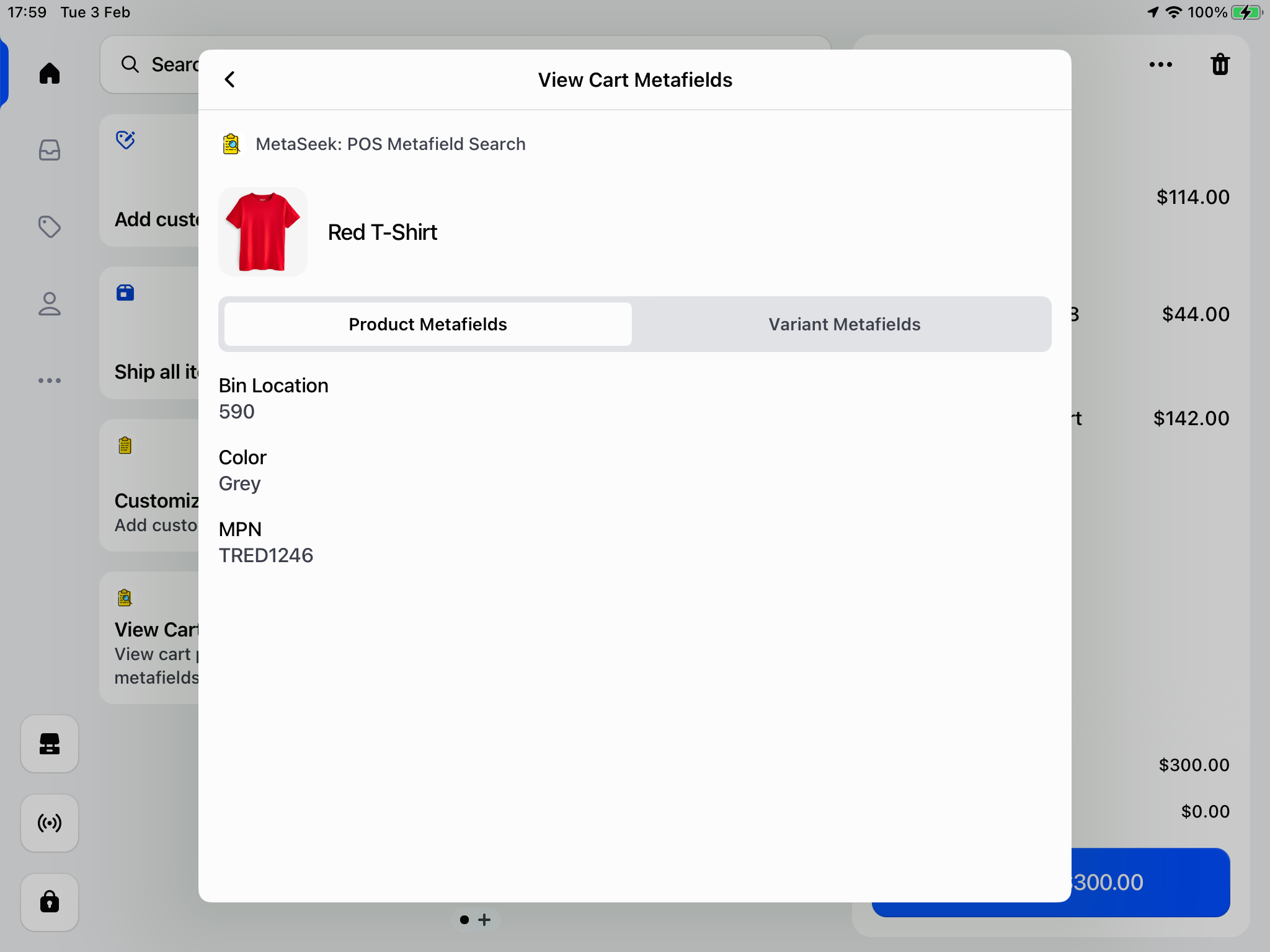
Viewing cart product metafields via Cart Product action menu
Ensure that you've correctly set up MetaSeek in Shopify POS.
-
Add a product to the POS cart through the products menu, or using a barcode scanner
-
Select the product in the cart and click the 'View Metafields' button in the action menu
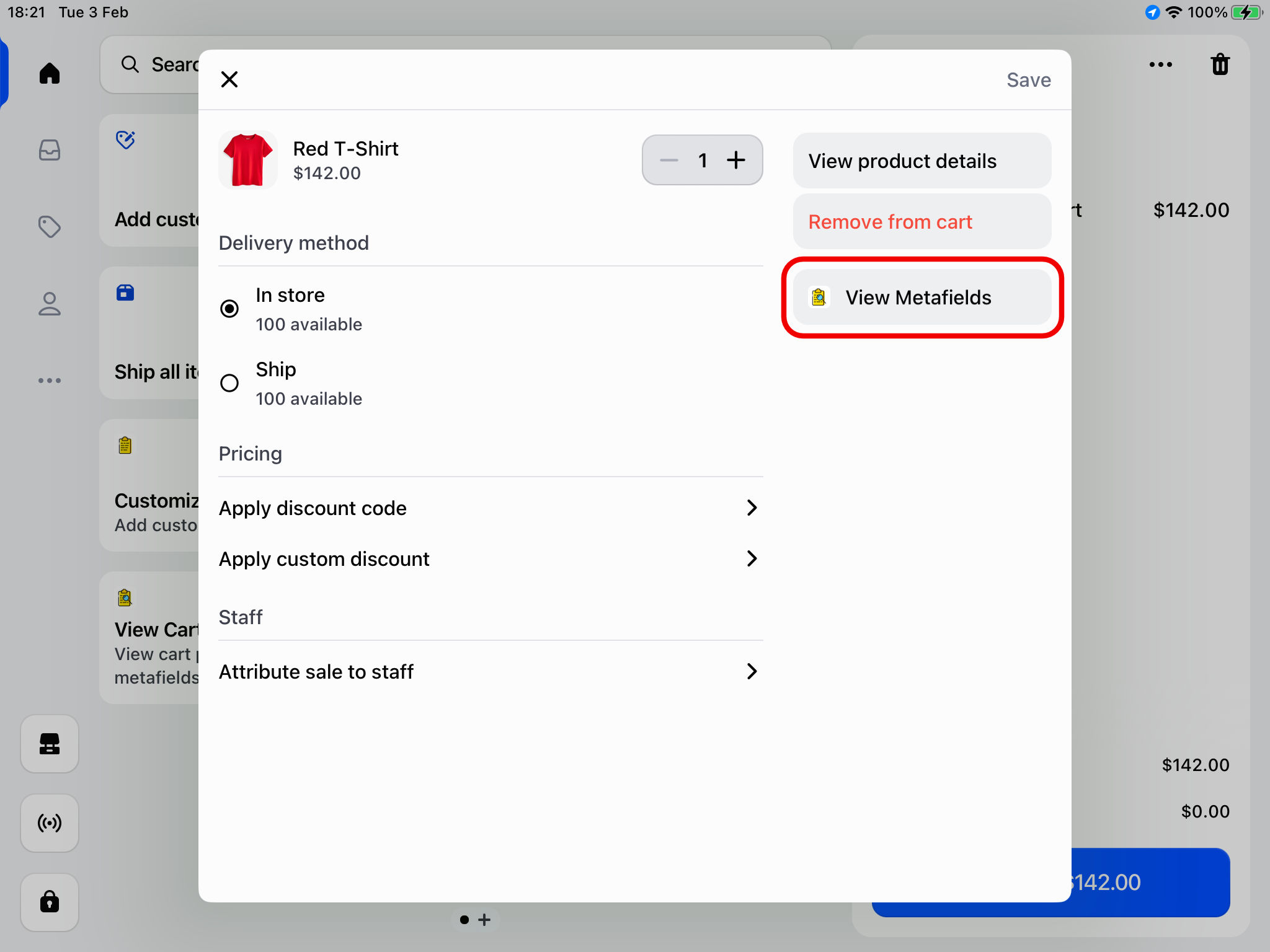
-
The product and variant metafields will be listed below