Creating Field/Group Rules
Rules can be created in POSify to dynamically show or hide customization fields or groups, based on the value of one or more other fields.
Rules are only available to customers on the Growth or Pro plan.
Managing field/group rules
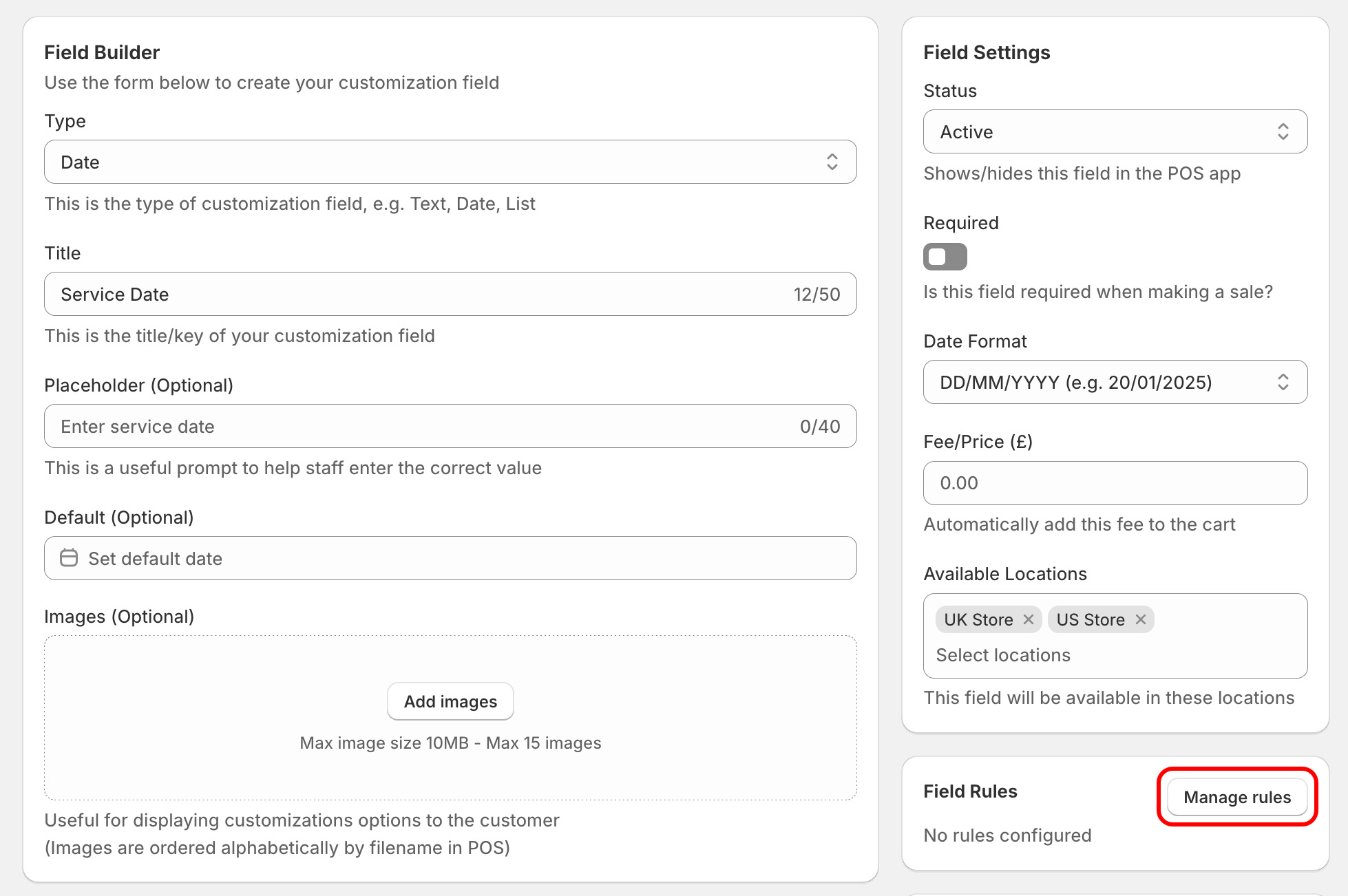
To create a field or group rule, first create or edit a customization field or group, and click the Manage rules button:
Building a ruleset
A ruleset is made up of the following:
- Action: Show/Hide/Require - Whether to show, hide or require the field/group based on the following rules
- Logic condition: All/Any - Whether any or all of the following rules have to be matched
- Rules: A list of one of more rules, explained below
An individual rule is made up of the following:
- Target: The reference field, or cart value that is being checked against (cart values are only applicable to cart fields)
- Operator: How the reference field value should be compared to the target value (e.g. is equal to, contains, is greater than)
- Target value: The value of the reference field that is being checked
Multiple rules can be chained together, to create a ruleset.
Available operators
Targetting a field
The following operators can be used when creating a rule targetting a field:
| Operator | Field Type | Example Use Case |
|---|---|---|
| is equal to | Text, Textbox, Number, Date, Time, True/False, List | SKU equals "ABC123" |
| is not equal to | Text, Textbox, Number, Date, Time, List | SKU does not equal "ABC123" |
| contains | Text, Textbox, List | Manufacturer contains "Audi" |
| does not contain | List | Manufacturer does not contain "Audi" |
| is empty | Text, Textbox, Number, Date, Time, True/False, List, Photo | Resell price is greater than 1000 |
| is not empty | Text, Textbox, Number, Date, Time, True/False, List, Photo | Resell price is greater than 1000 |
| is greater than | Number | Resell price is greater than 1000 |
| is less then | Number | Resell price is less than 1000 |
| is before | Date, Time | Service date is before 01/01/2026 |
| is after | Date, Time | Service date is after 01/01/2026 |
Targetting the cart
The following operators can be used when creating a rule targetting a cart value:
| Operator | Cart Value | Example Use Case |
|---|---|---|
| is equal to | Subtotal, Grand Total, Total Items | Cart subtotal is equal to $100.00 |
| is not equal to | Subtotal, Grand Total, Total Items | Cart total items is not equal to 0 |
| is greater than | Subtotal, Grand Total, Total Items | Cart grand total is greater than $250.00 |
| is less then | Subtotal, Grand Total, Total Items | Cart total items is less than 5 |
Example rulesets
Example 1: Showing a field (2 rules)
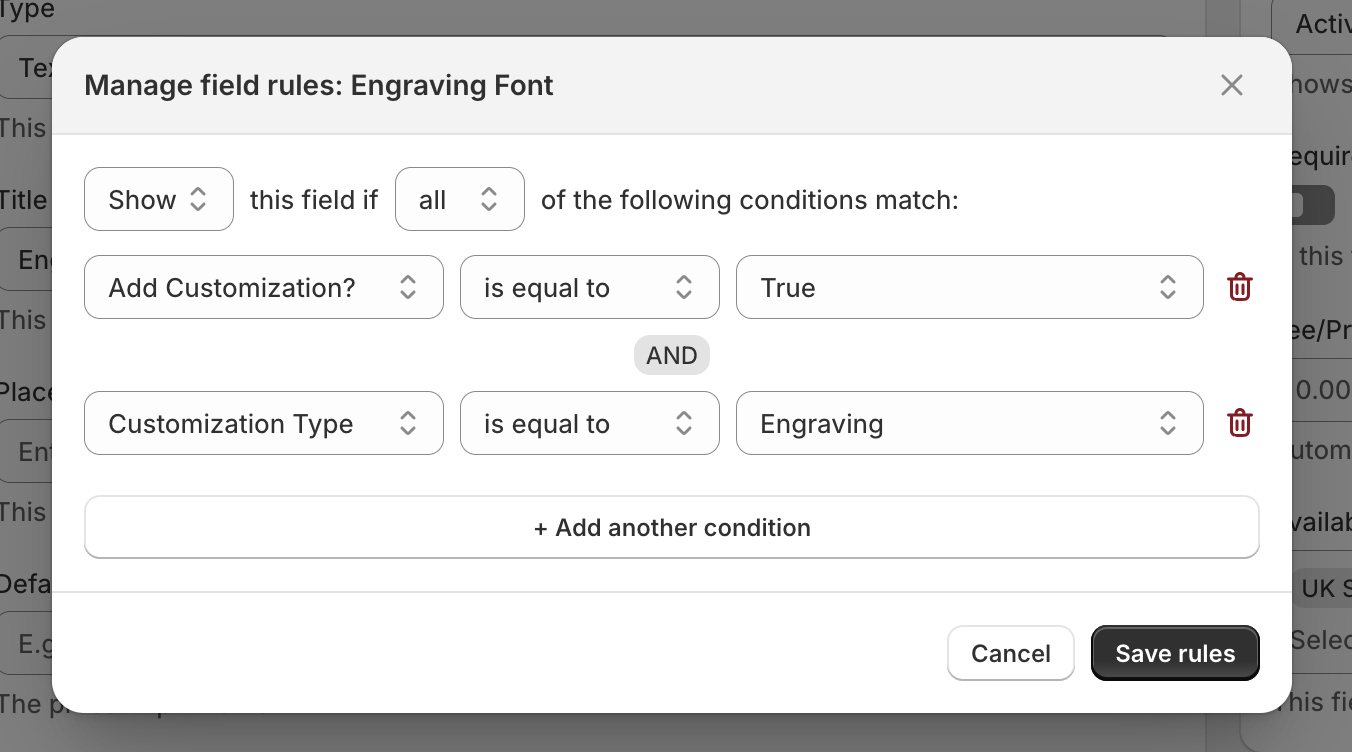
Show the Engraving Font field, if the Add Customization? field is set to True and the Customization Type field is set to Engraving:
Example 2: Showing a group (single rule)
Show the Engraving Font field, if the Add Customization? field is set to True and the Customization Type field is set to Engraving:
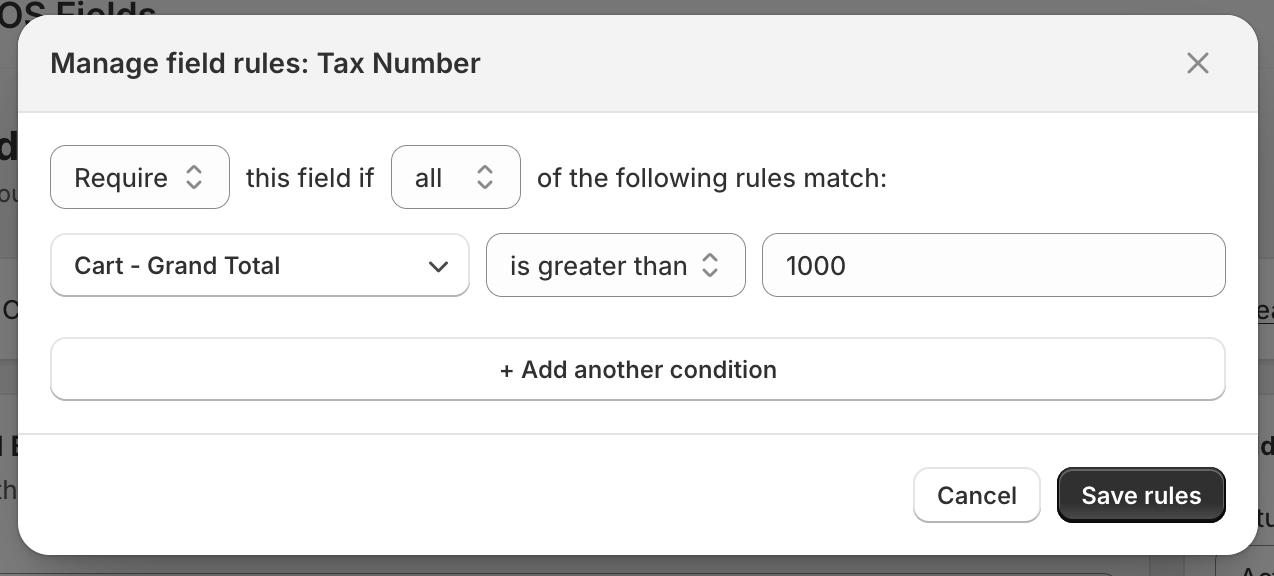
Example 3: Requiring a field (single rule)
Require the Tax Number field, if the cart total is greater than $1000.00: