Setting up cart field groups
Cart fields can be organized into collapsible groups, helping to improve navigation and streamline the checkout experience in the POSify POS app.
Creating a cart field group
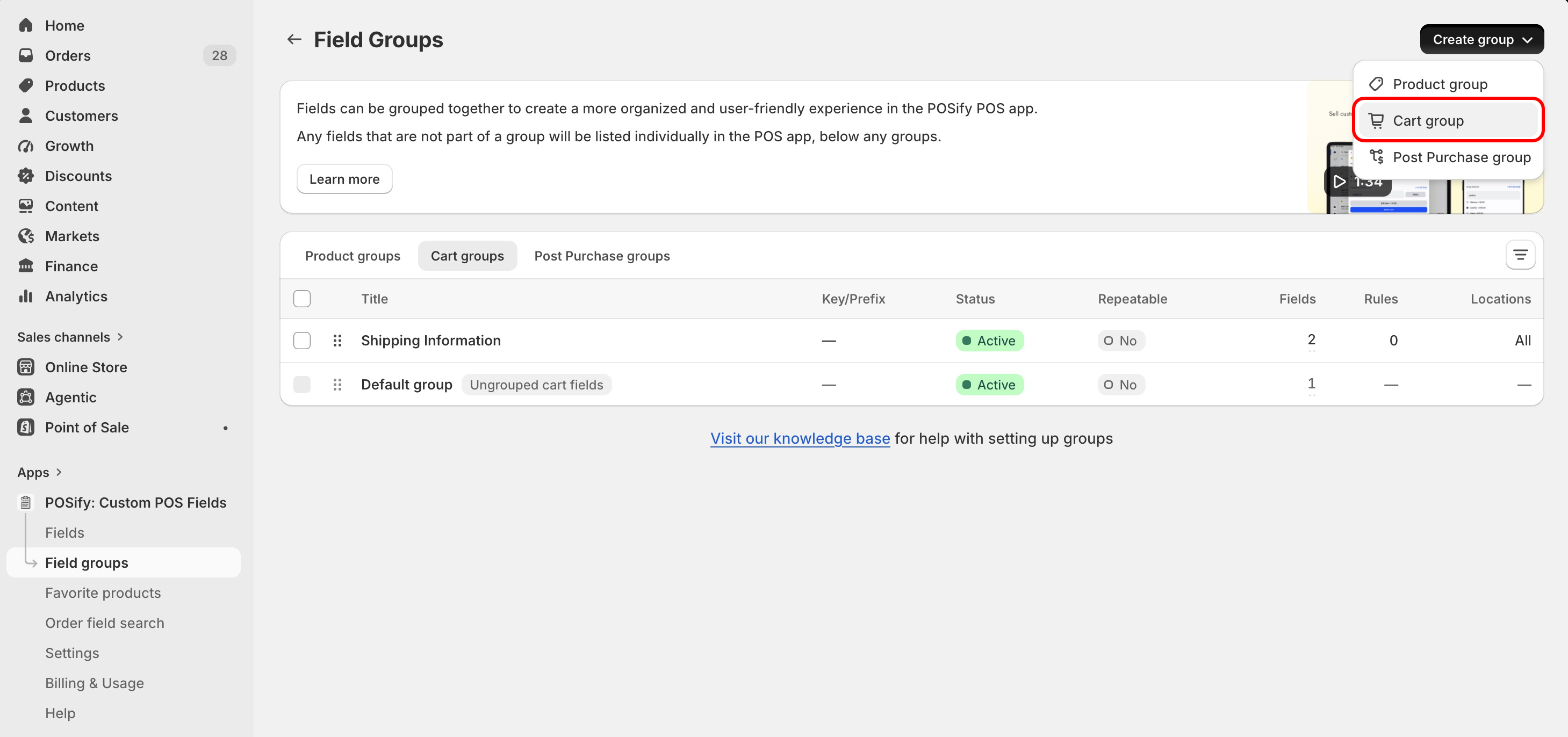
Head to the Field groups page in the POSify Shopify Admin app, and select the Cart groups filter at the top of the table.
The table will list all of your cart groups, as well as the Default group - a group that contains all of custom cart fields that are not assigned to a specific group.
To create a new cart field group, click the Create group button, then Cart group:
Group details
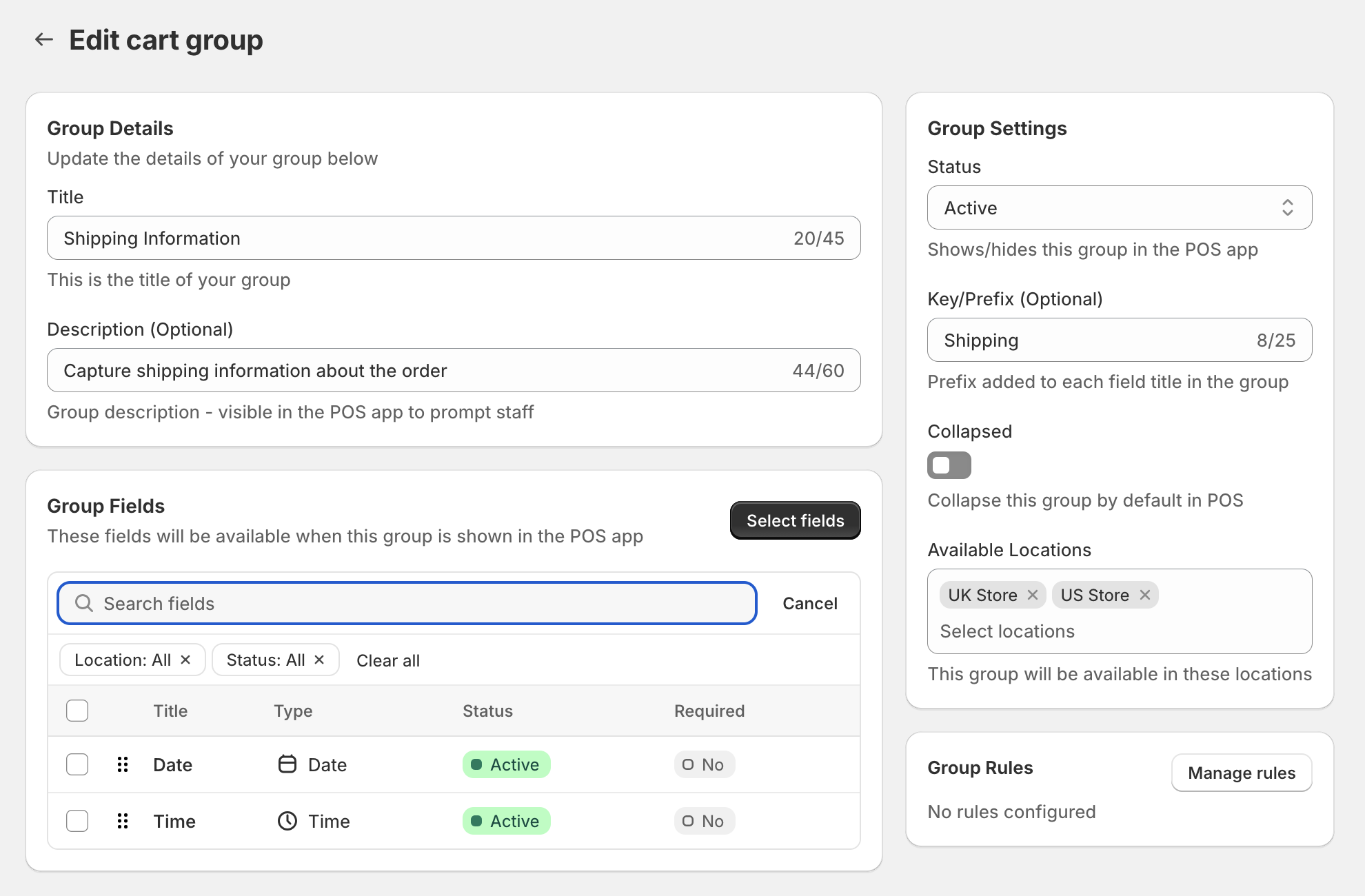
- Title: The title of the group
- Description: The group description or instructions - visible in the POS app to help staff
Group fields
The custom fields that are assigned to this group.
Fields can be reordered by clicking and dragging the drag handle on the left of the table row.
Group settings
Each customization group has the following settings options:
- Status: Whether the group should be displayed in the POS app
- Key/Prefix: A prefix added to each field title in this group - e.g. if you had a field called
Appointment Timein this group, and set the key asRepair, the field would becomeRepair - Appointment Time - Collapsed: Whether this group should be collapsed by default in the POSify POS app
- Available Locations: Which locations this field should be available at (only application for stores with multiple POS locations) - this will override a specific field's Available Locations setting
Group rules
Groups can be dynamically shown or hidden based on the values of fields in other groups - see the Creating field/group rules guide for more information.
Example groups in Shopify Admin & POS
Shipping Information example
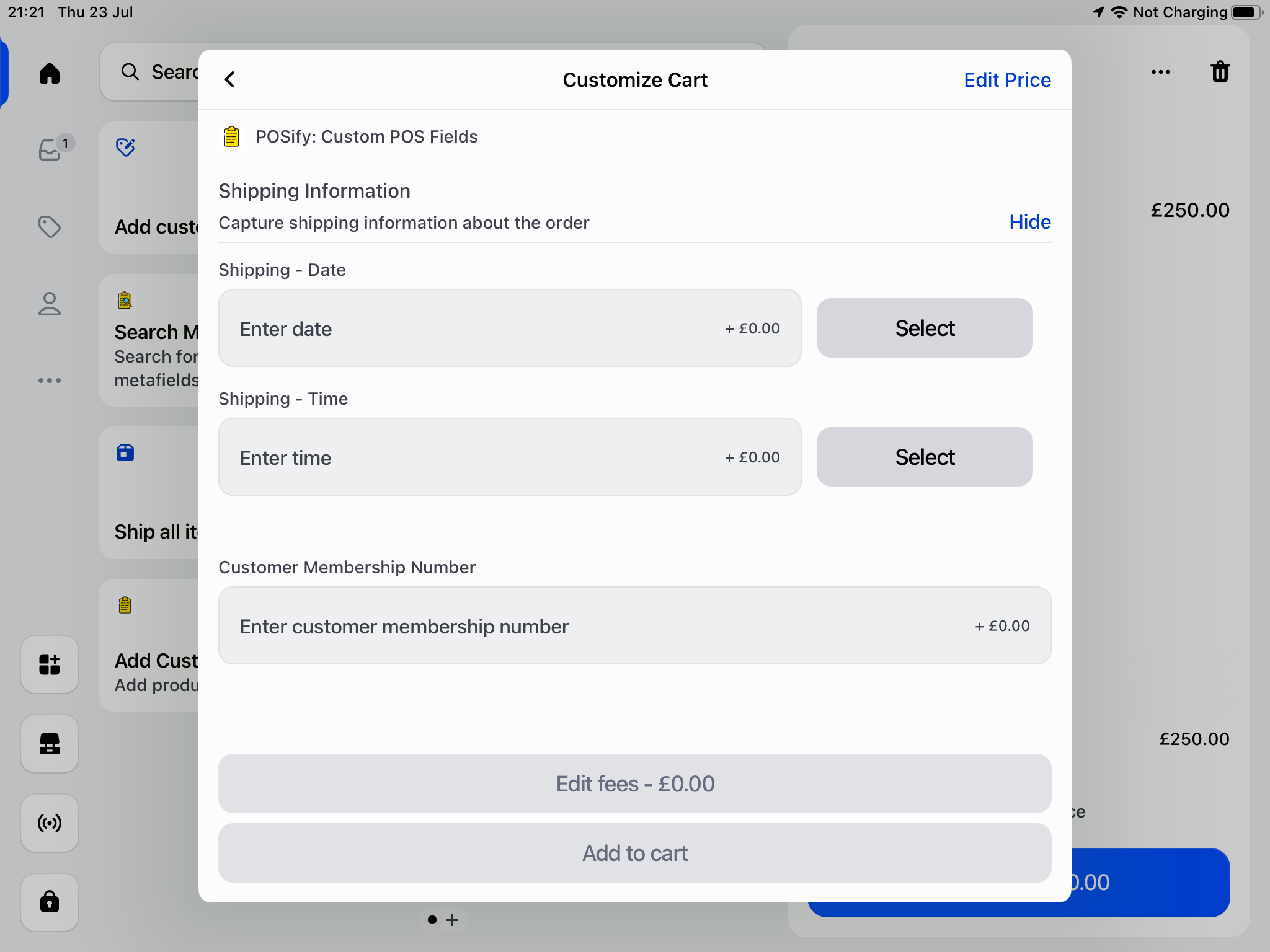
Below is an example of a cart field group created in POSify.
- Title: Shipping Information
- Description: Capture shipping information about the order
- Group Fields: Two fields: Date (Date) and Time (Time)
- Key/Prefix: Shipping
- Collapsed: False
- Available Locations: UK Store & US Store
This is how the group is displayed in the POSify POS app (The Customer Membership Number field is ungrouped):