Creating product customization fields
POSify allows merchants to customize products when selling via Shopify POS. These customization options must first be set up in Shopify Admin:
Create a new product field
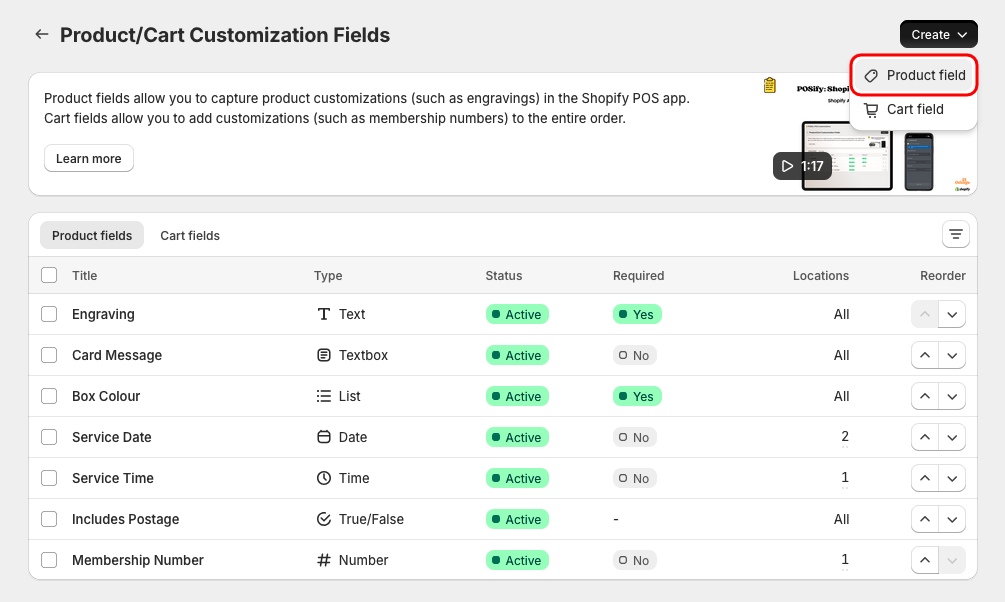
Head to the Product/cart fields page in the POSify Shopify Admin app and select the Product fields filter at the top of the table to view all of your product customization fields. To create a new field, click the Create button, then Product field.
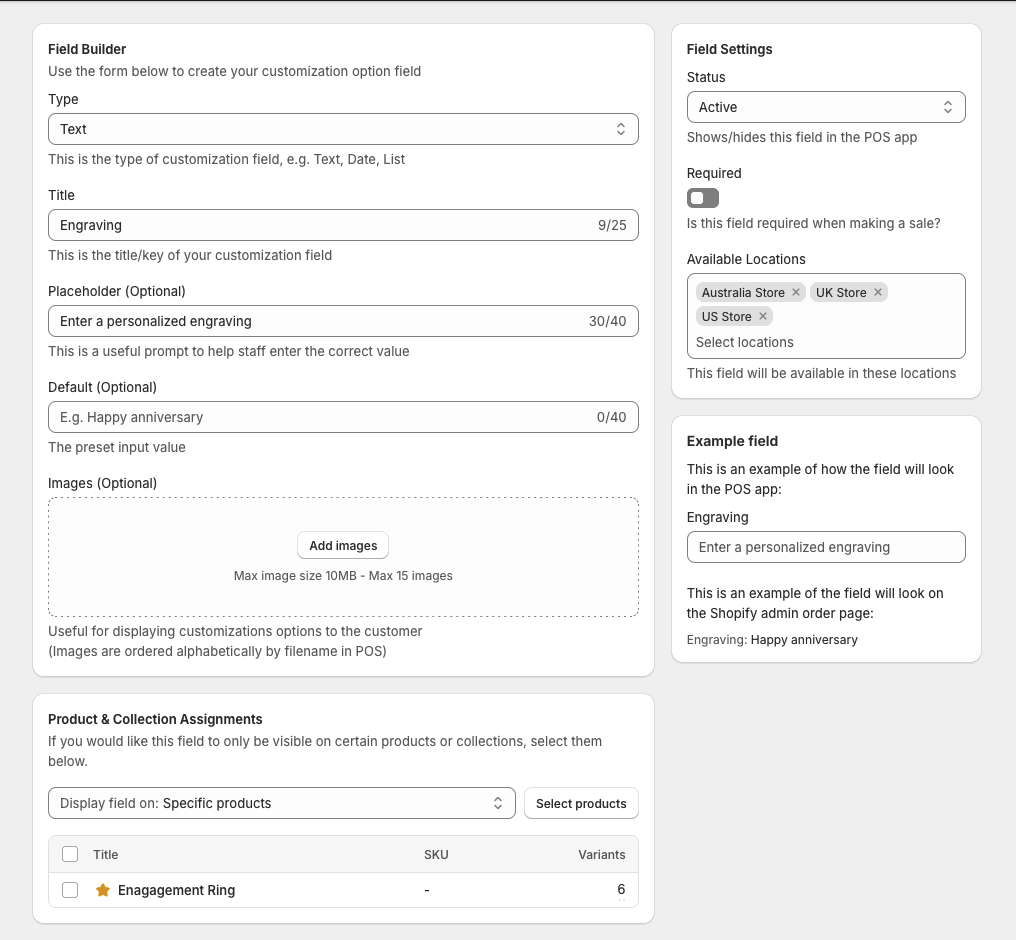
Below is an example of a text field created in POSify:
Below is an example of a single select list field created in POSify, with images attached:
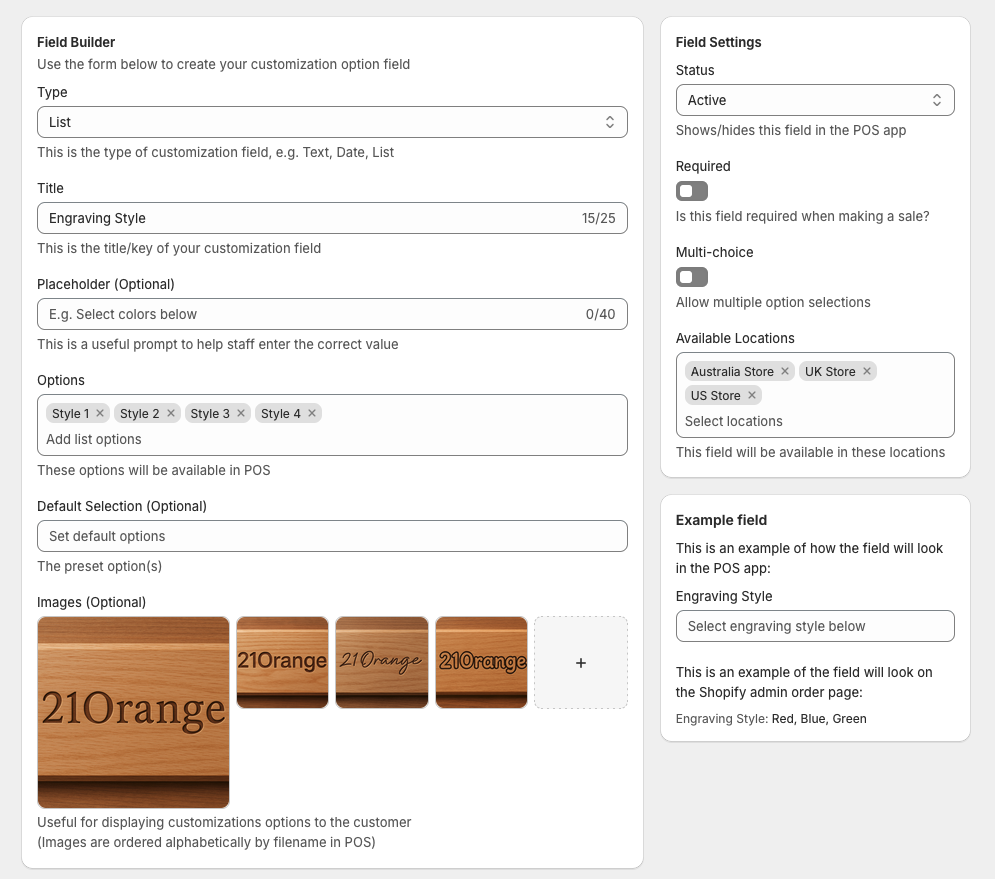
Field types
POSify allows the following field types to be created:
- Text: A simple text field
- Multi-line textbox: A text field with multiple lines
- Number: A text field that only allows numbers to be entered
- Date: A field that allows dates to be entered using the POS device's native date picker
- True/false: A true or false selection
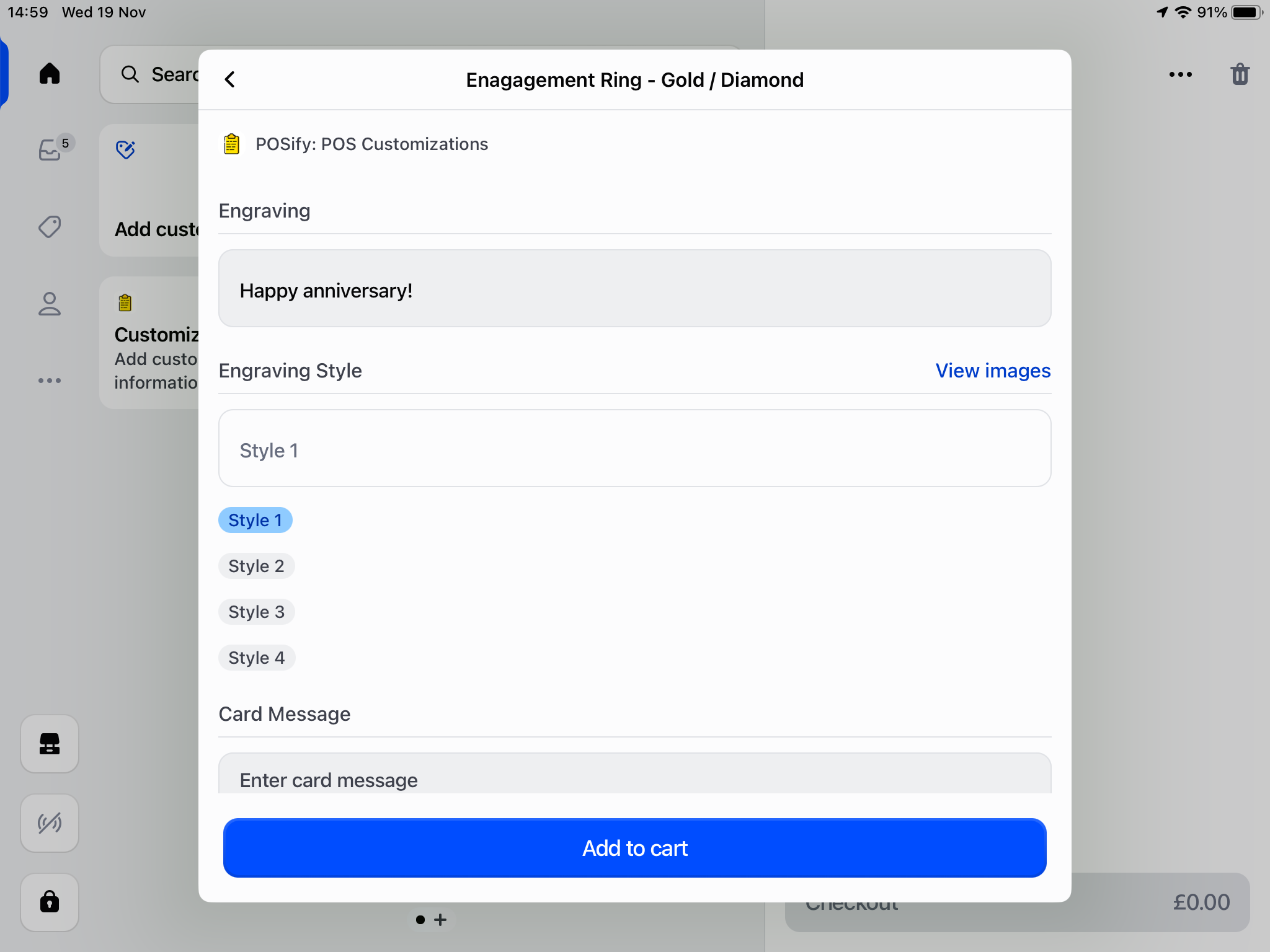
- List: A list containing multiple options, which can be set to single select or multi-select
Field builder fields
Customization fields can have the following attributes, based on it's type:
- Title: The title of the customization field
- Placeholder: The helper text displayed inside the field before any text is entered, useful for prompting staff
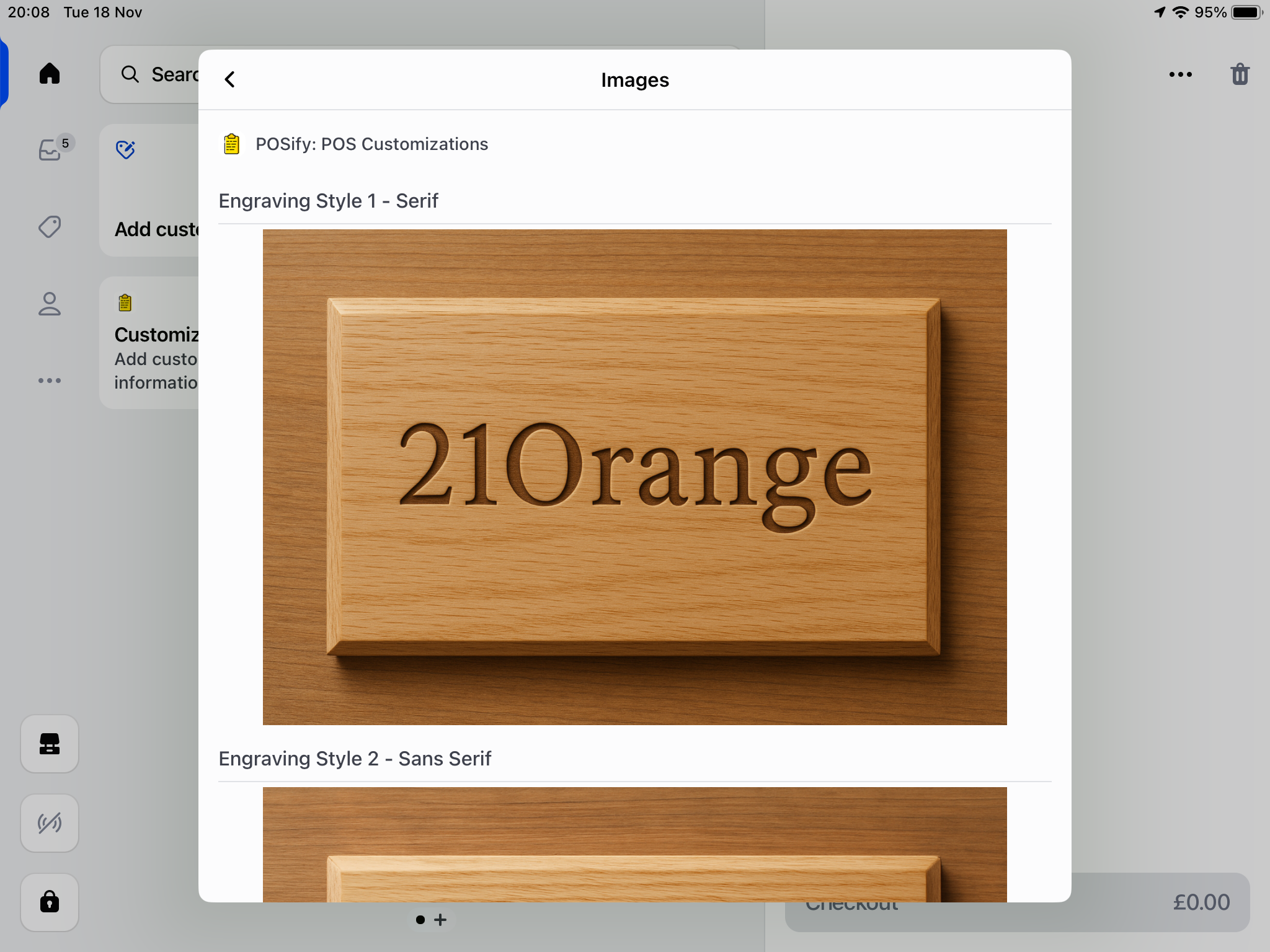
- Images: A list of up to 15 images that can be used to visually display customization options to the customer at checkout - Images are ordered alphabetically by filename in POS
- Default value: The pre-selected value(s) that are set
Field settings
Each customization field has the following settings options:
- Status: Whether the field should be displayed in the POS app
- Required: Whether this field needs to be filled in before adding the product to the cart - see the Required fields warning guide to warn the user that they're missing required fields when checking out
- Fee/Price: The fee that should automatically be added to the product price when this field has a value (list field types can have a different fee for each individual option) - see the Customization Fees guide for more information
- Available locations: Which locations this field should be available at (only application for stores with multiple POS locations)
- Date format (date only): The format of the inputted date
- Multi-choice (list only): Whether the list should allow multiple options to be selected
- Searchable (list only): Allows the list of options to be searchable in the POS app
- Hide from order/receipt if false (true/false only): Whether to hide this field on receipts if the value is set to false
Field product/collection assignments
The following assignments can be set:
- All: Display this field on all products
- Specific products: Only show this field on these products
- Specific collections: Only show this field on products that exist in these collections
Example field
This box displays an example of how the field will be displayed in the POS app, and how the value will be displayed on the order page in Shopify Admin.
POSify POS app
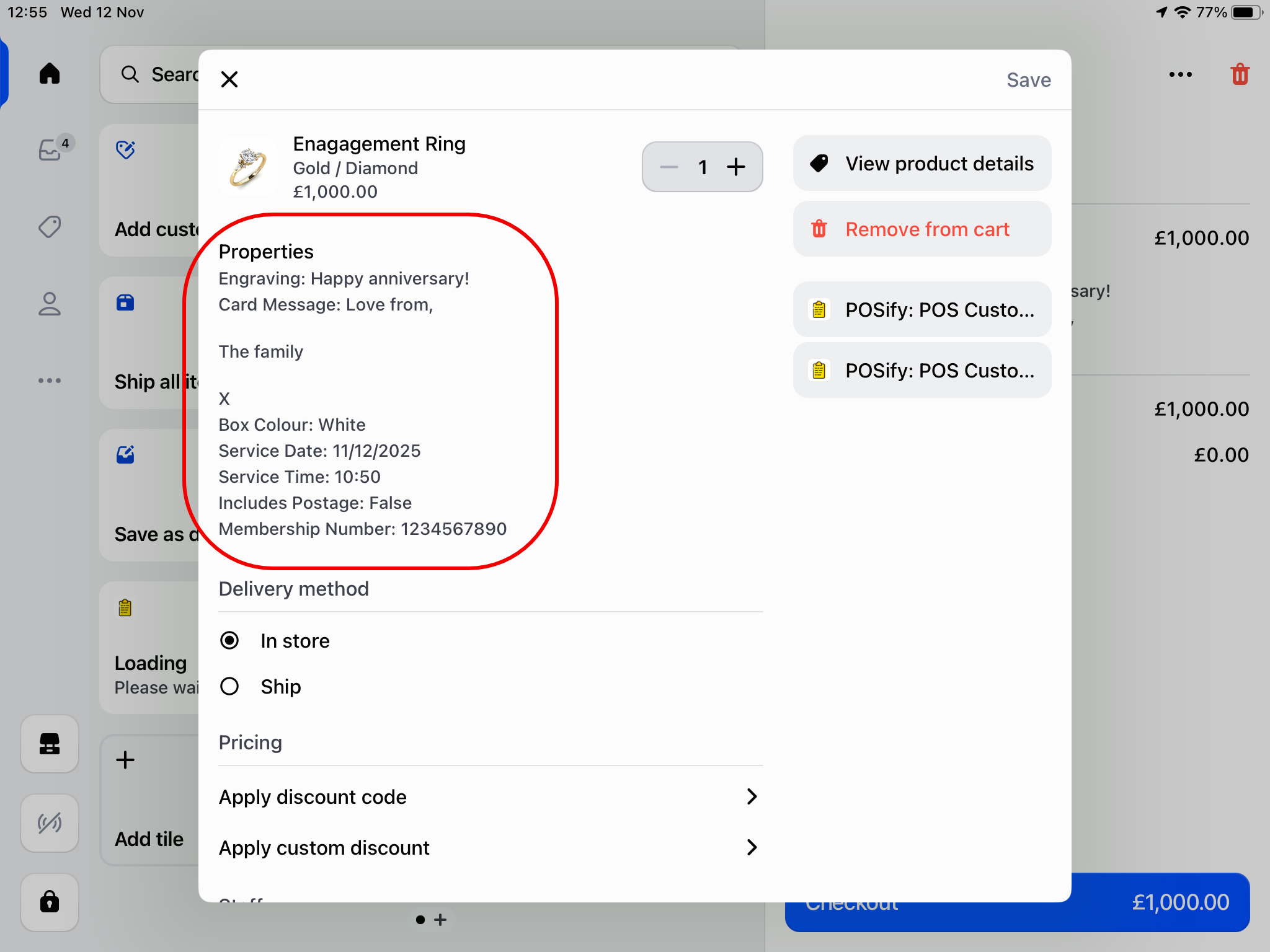
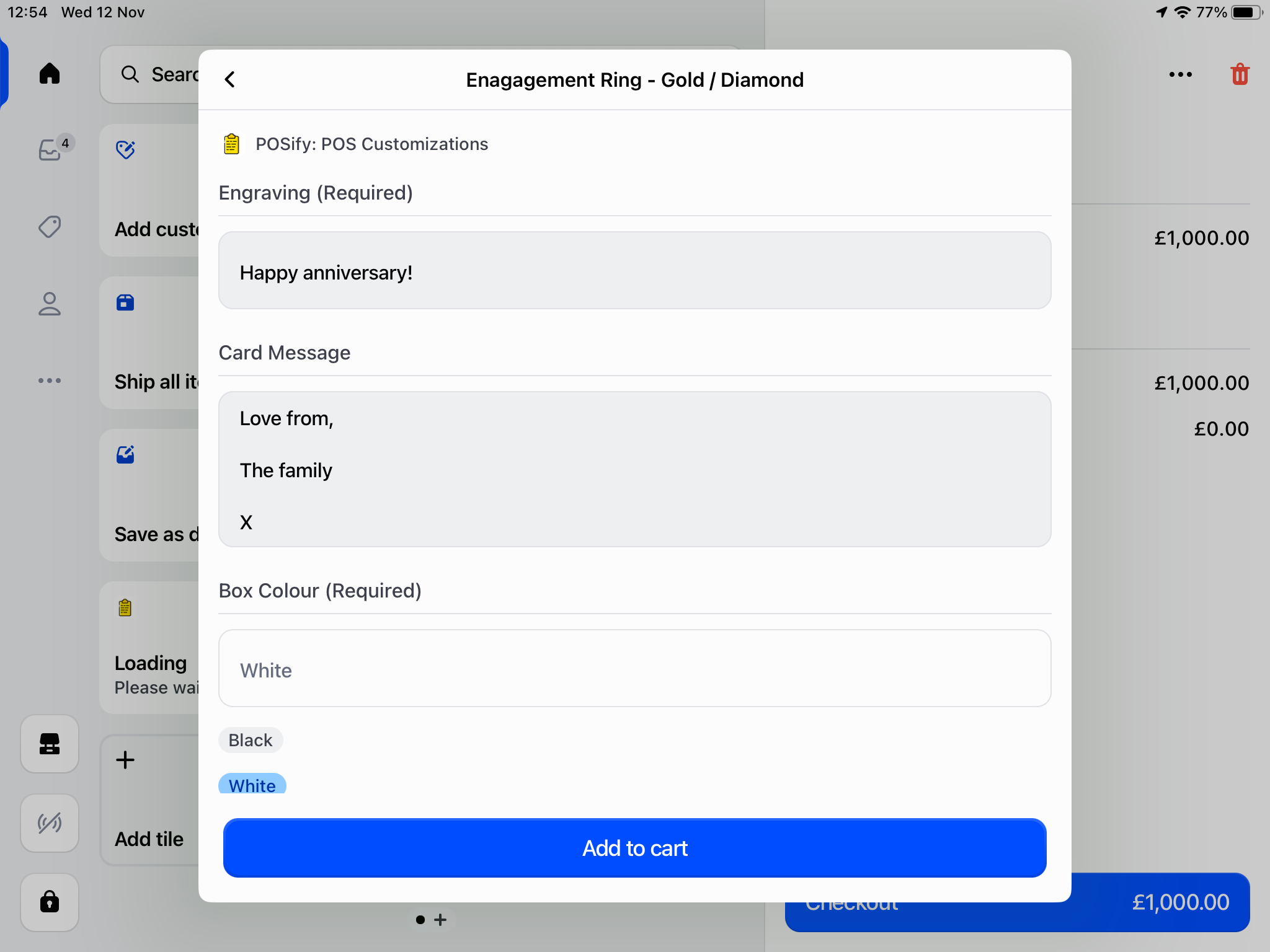
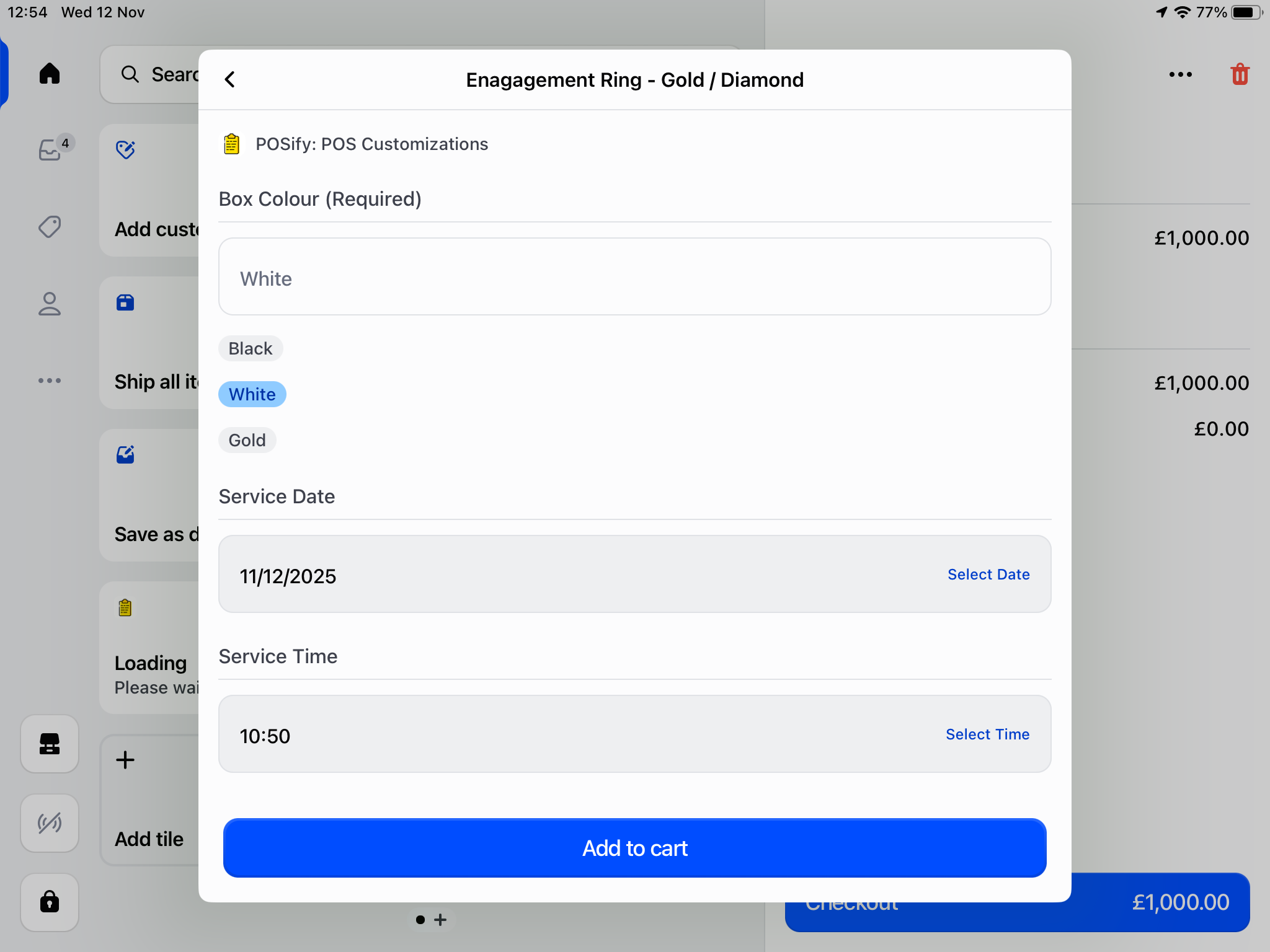
The screenshots below show how each of the field types are displayed in the POSify POS app:
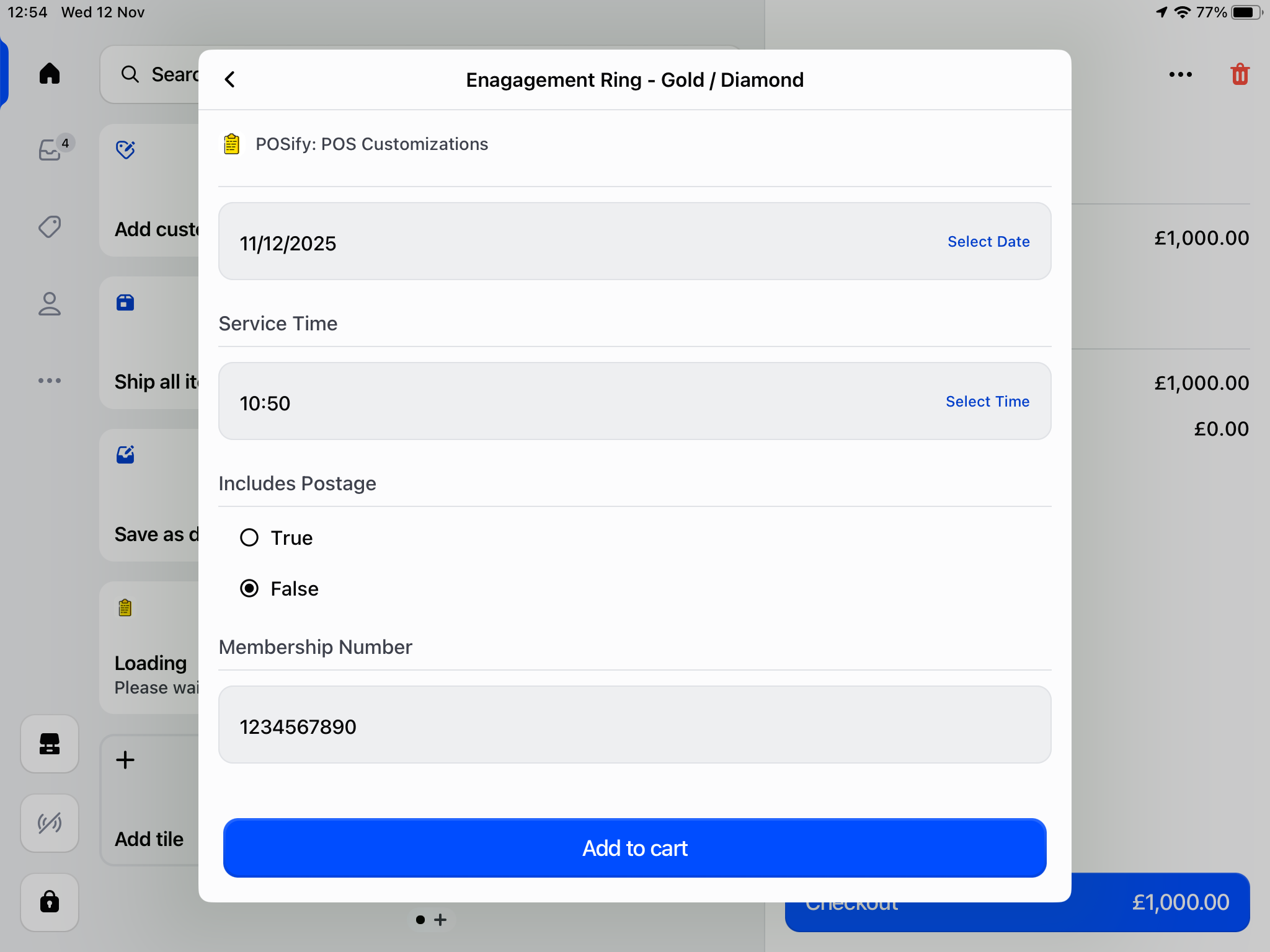
The screenshots below show how images are displayed in the POSify POS app:
Accessing the values
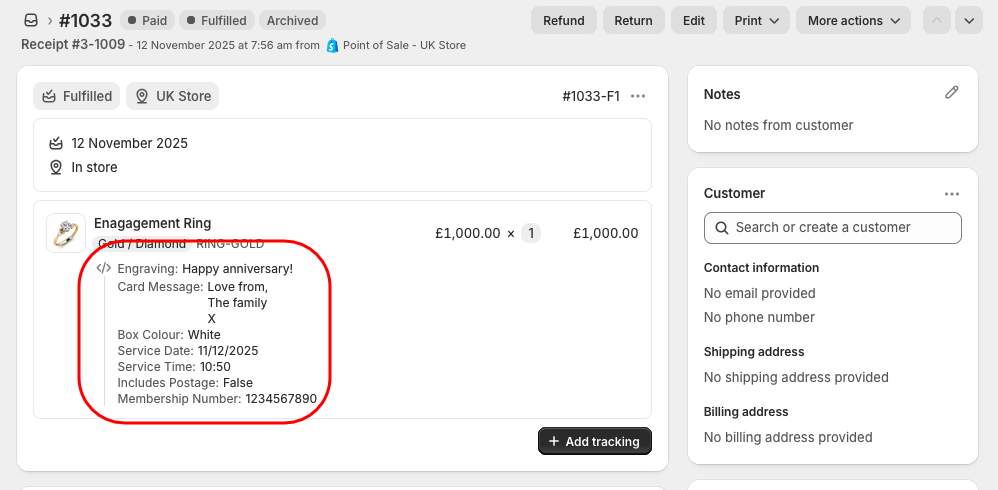
The value of each field is stored as a property of the product in Shopify. These can be seen in both the POS app, and in Shopify Admin: