Capturing post purchase information in POS
After creating your post purchase customization groups and fields, you can begin capturing post purchase information with POSify, within Shopify POS.
Ensure that you've correctly setup POSify in Shopify POS.
Loading post purchase fields in POS
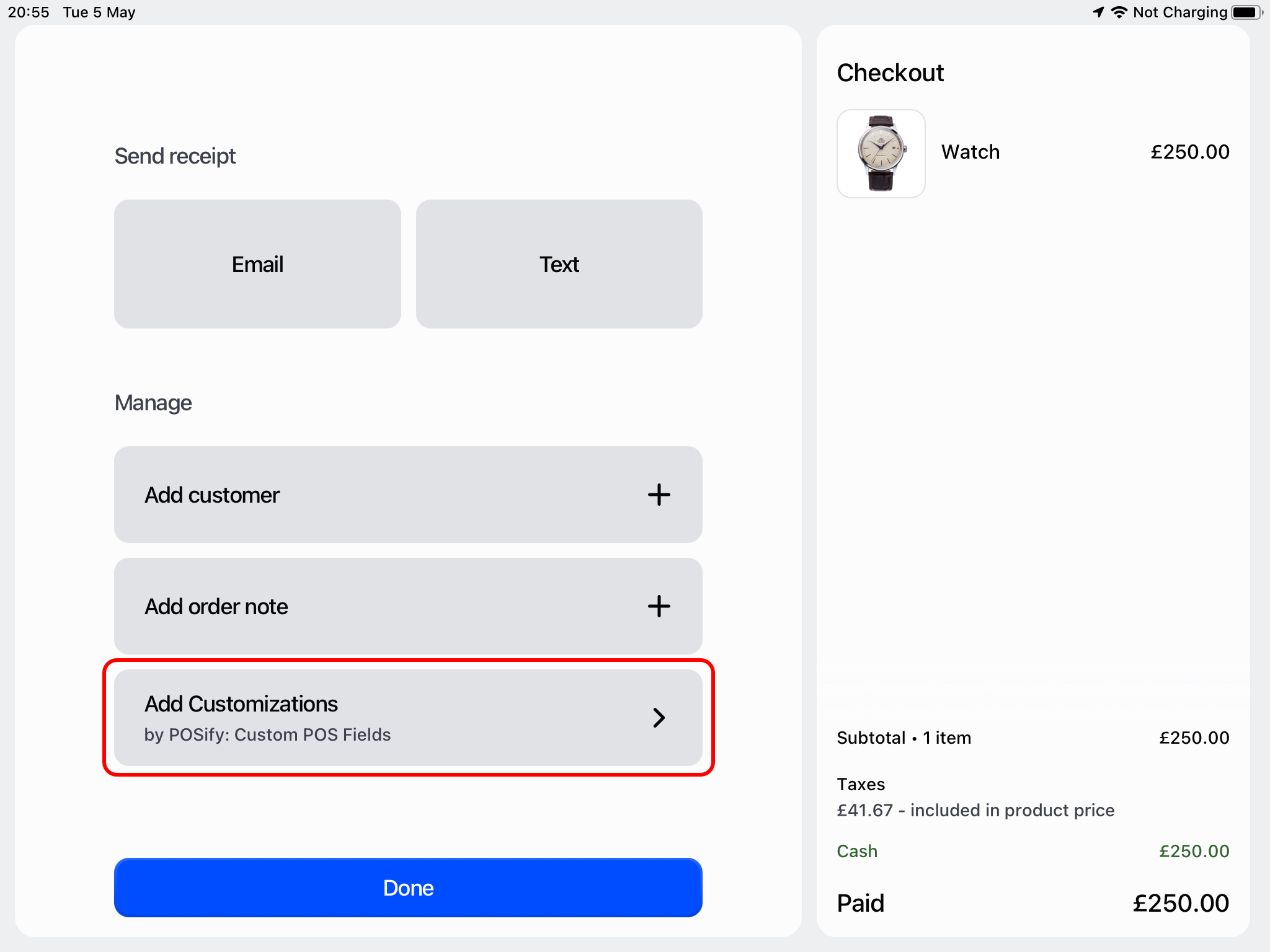
After making a sale in Shopify POS, click the Add Customizations button:
Capturing post purchase data
Once loaded, you can begin filling in your pre-defined customization fields in the POSify POS app.
Fields will be grouped into your pre-defined field groups, and any ungrouped fields will be listed below:
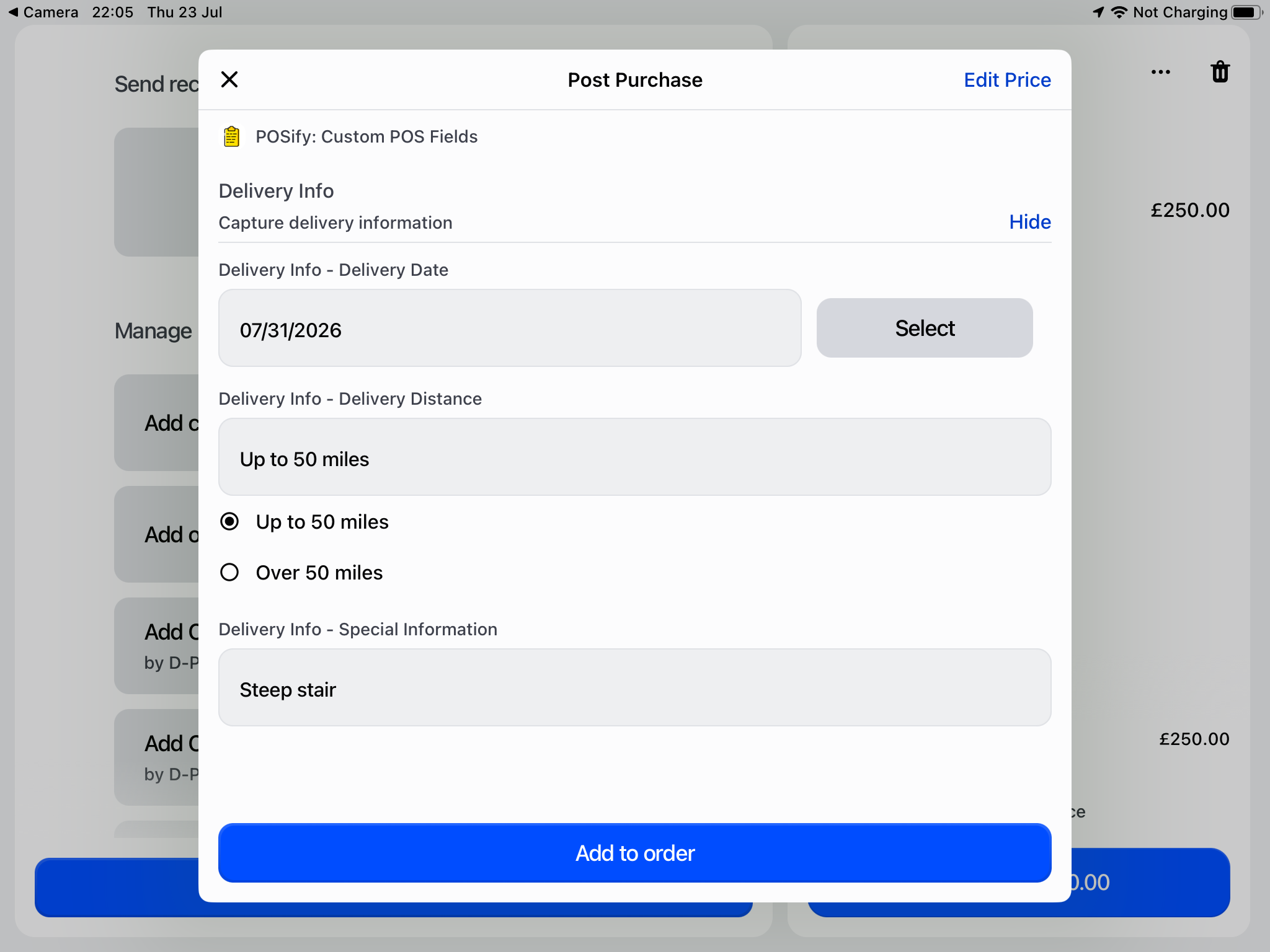
Finally, click the Add to cart button - the values will then be added to the POS cart:
Accessing the values in Shopify Admin & POS
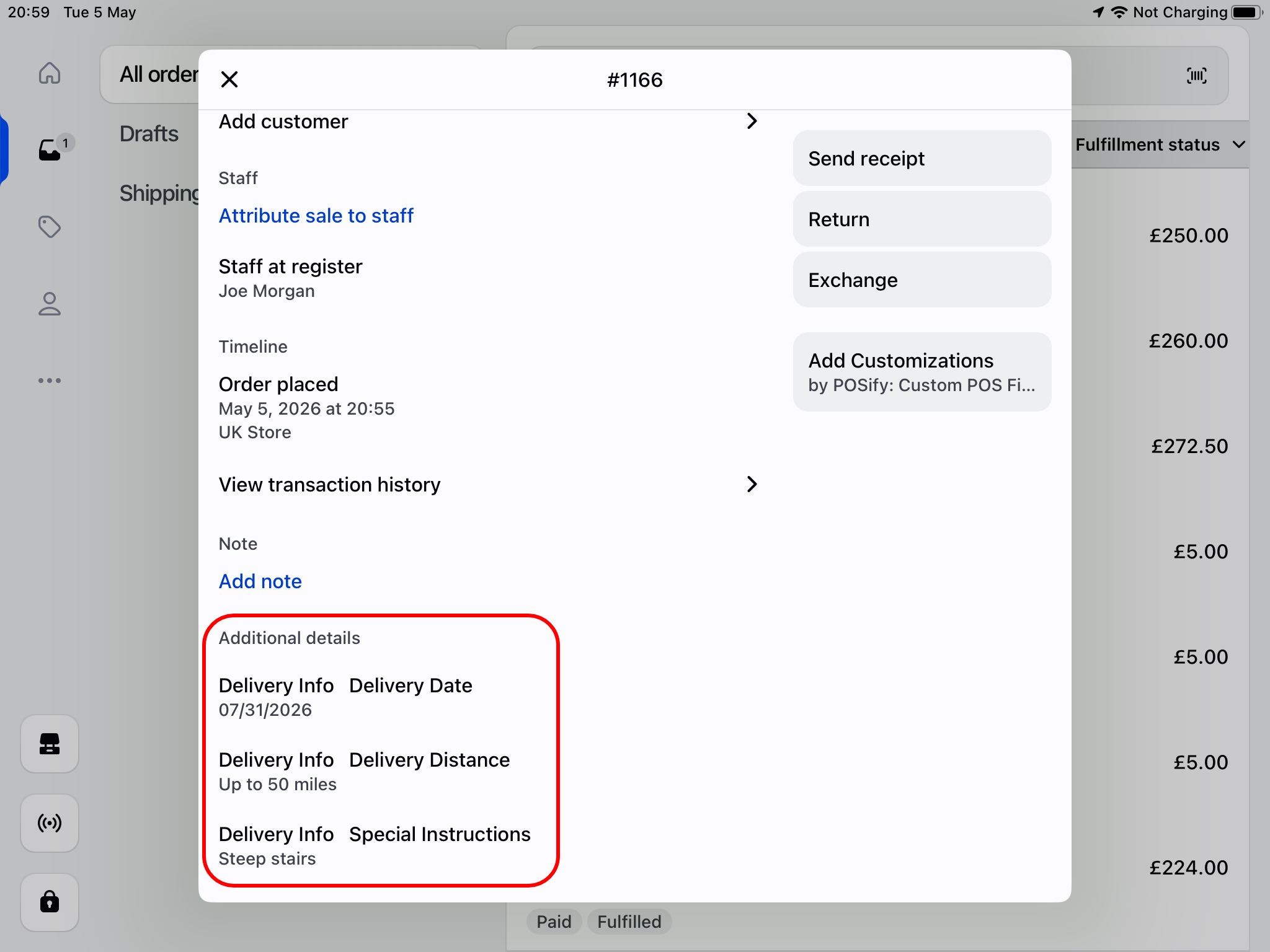
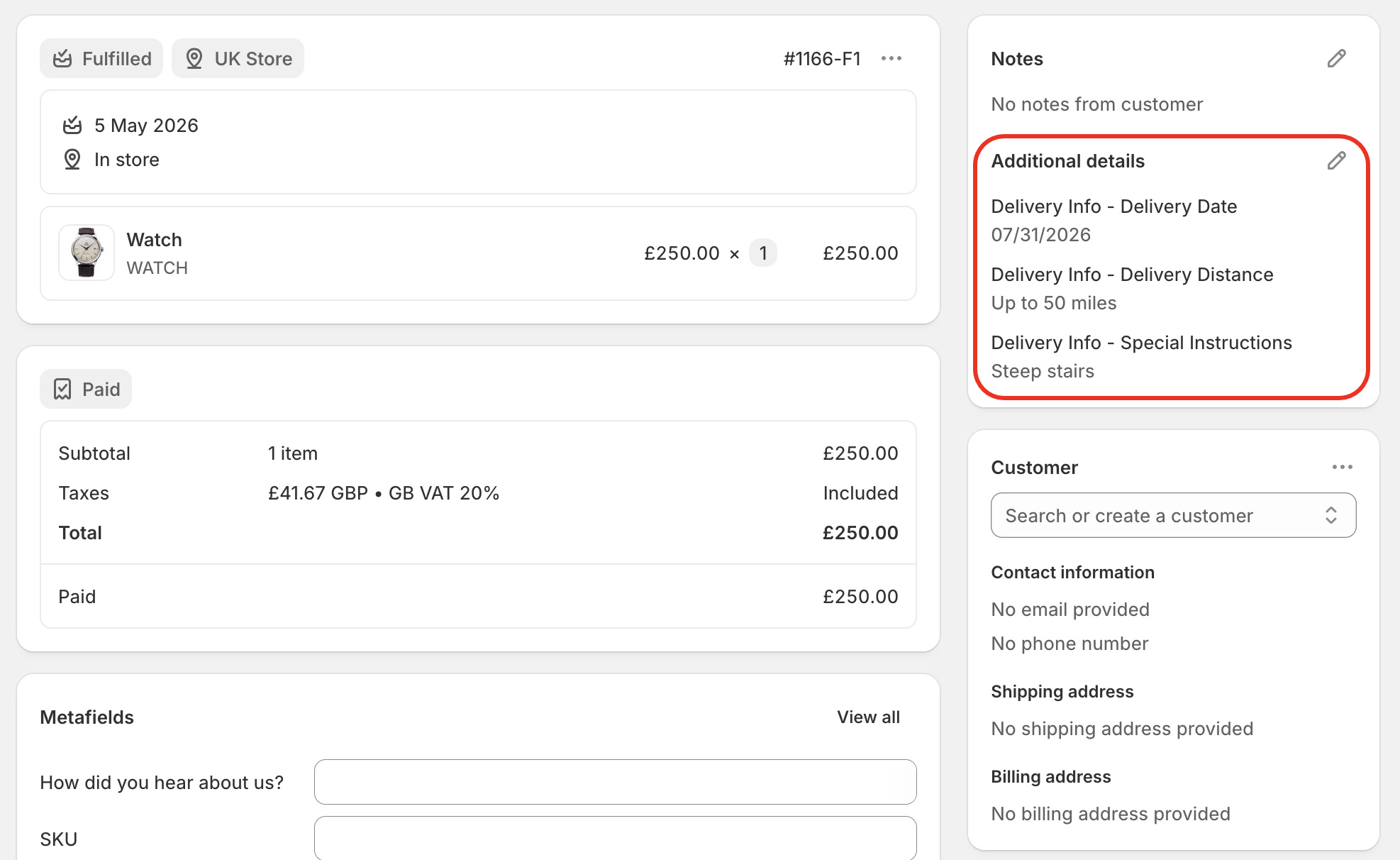
Post purchase information can be saved to an order as an additional detail/property, an order tag, or an order metafield. See the Save to order as guide for more information. These can be seen in both the POS app, and in Shopify Admin: