Setting up post purchase fields
Post purchase fields allow you to capture information once a sale has been made when selling via Shopify POS, such as customer feedback. These fields must first be set up in Shopify Admin.
Post purchase fields can be organized into collapsible groups, helping to improve navigation and streamline the checkout experience in the POSify POS app.
You can save post purchase field values to the following places:
- Order attributes
- Order tags (see the Save to order as guide for more information)
- Order metafields (see the Save to order as guide for more information)
Creating a new post purchase field
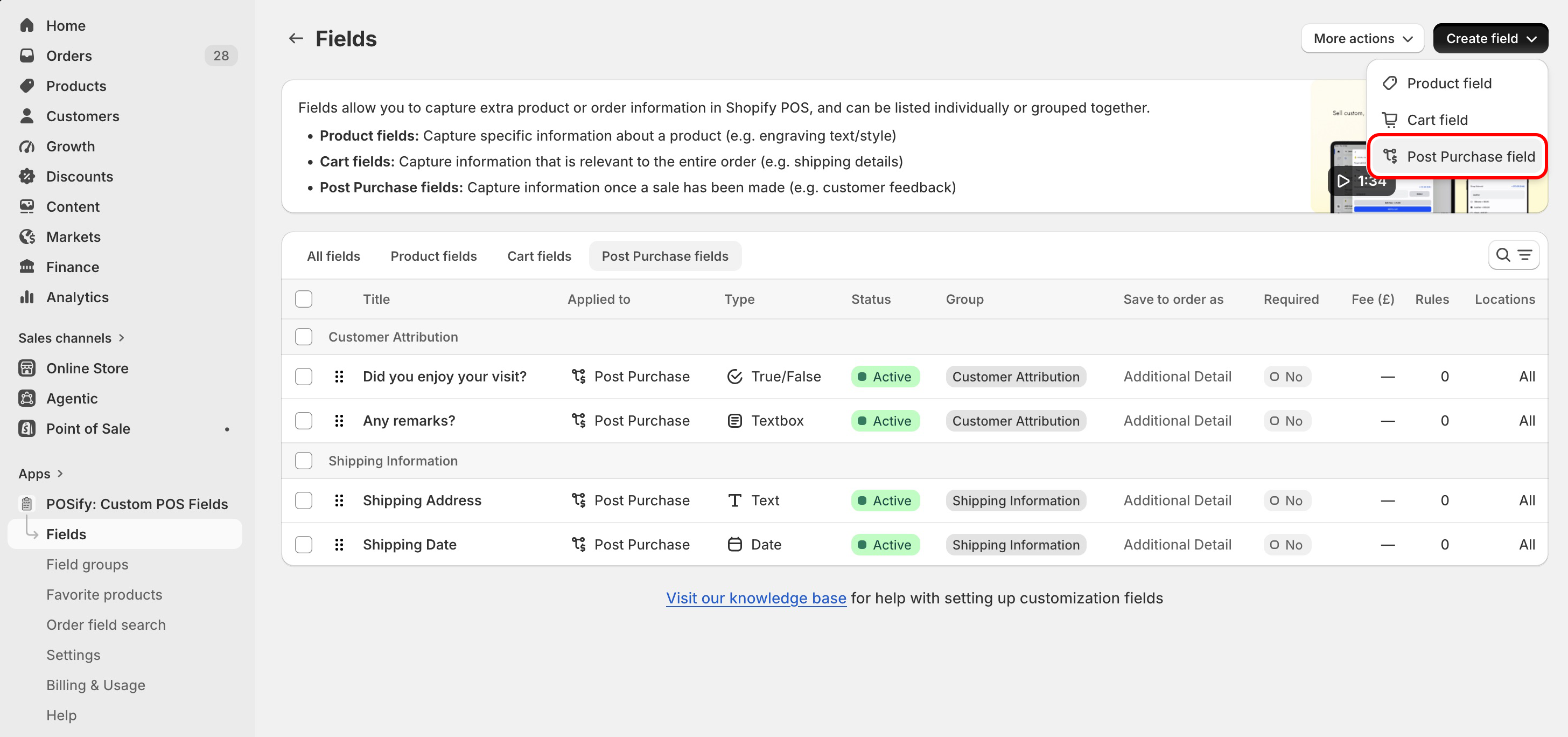
Head to the Fields page in the POSify Shopify Admin app. The table will list all of your custom fields - to only show your post purchase fields, select the Post Purchase fields filter at the top of the table.
To create a new post purchase field, click the Create field button, then Post Purchase field:
Field types
POSify allows the following field types to be created:
- Text: A simple text field
- Multi-line textbox: A text field with multiple lines
- Number: A text field that only allows numbers to be entered
- Date: A field that allows dates to be entered using the POS device's native date picker
- Time: A field that allows times to be entered using the POS device's native time picker
- True/false: A true or false selection
- List: A list containing multiple options, which can be set to single select or multi-select
- Photo: A field that allows a photo to be uploaded from the POS device
Field builder fields
Custom fields can have the following attributes, based on it's type:
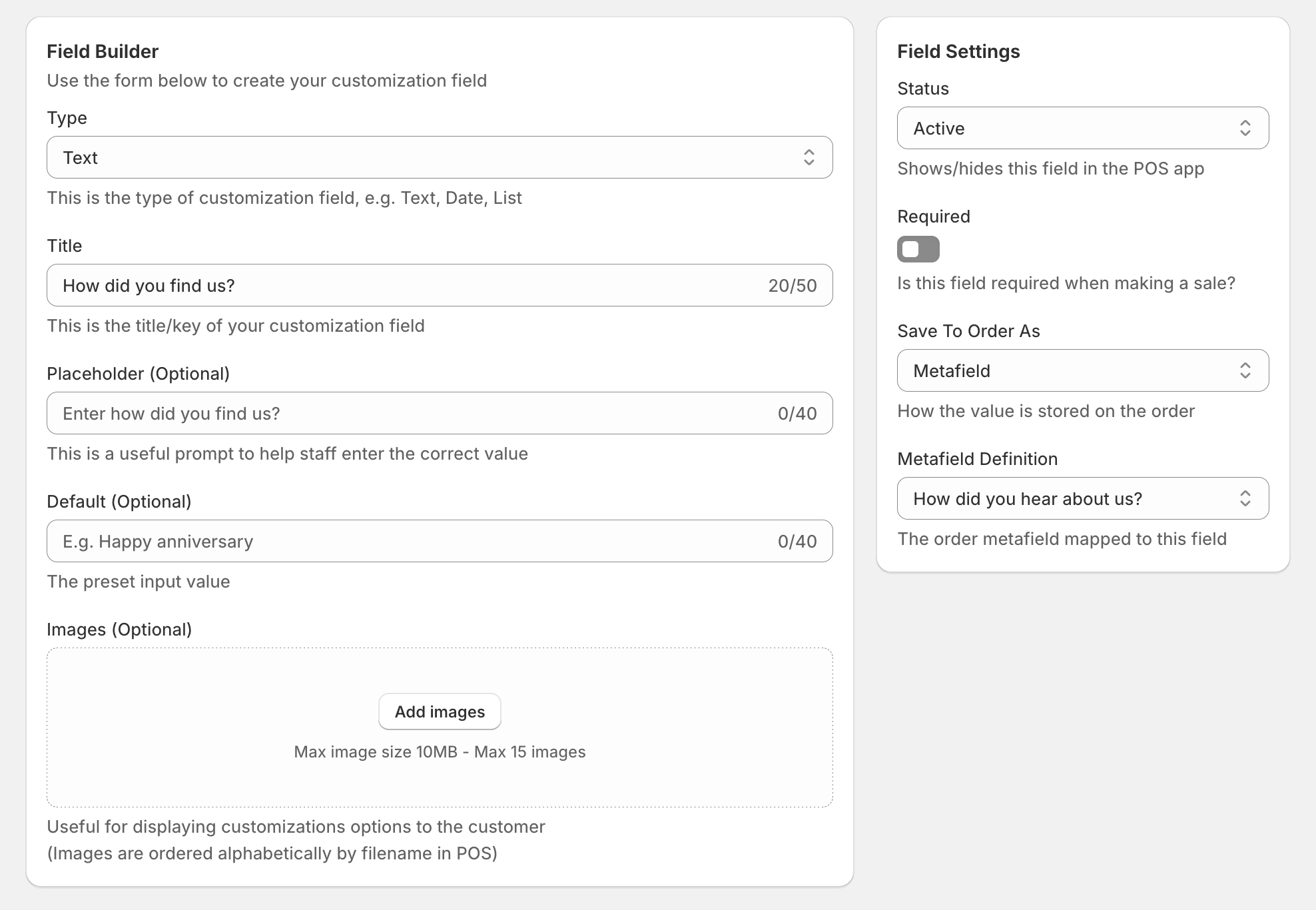
- Title: The title of the custom field
- Placeholder: The helper text displayed inside the field before any text is entered, useful for prompting staff
- Options (list only): The options that will appear in the list - see the Importing list options guide for import instructions
- Default Value: The pre-selected value(s) that are set
- Reference Images: A list of up to 15 images that can be used to visually display customization options to the customer at checkout - Images are ordered alphabetically by filename in POS
Field settings
Each custom field has the following settings options:
- Status: Whether the field should be displayed in the POS app
- Required: Whether this field needs to be filled in before submitting - see the Required fields alert guide to warn the user that they're missing required fields when checking out
- Available Locations: Which locations this field should be available at (only application for stores with multiple POS locations)
- Save To Order As: How the value of this field should be stored on the order - see the Save to order as guide for more information
- Metafield Definition (save as metafield only): The order metafield definition that the value of this field should be saved to
- Multi-choice (list only): Whether the list should allow multiple options to be selected
Field settings (advanced)
- Character Limit (text/textbox only): The total number of characters that can be entered into this field in POS
- Date Format (date only): The format of the inputted date
- Excluded Dates (date only): Which dates won't be available for selection in the POS app
- Searchable (list only): Allows the list of options to be searchable in the POS app
- Max Selections (list only): The maximum number of list items that can be selected
- Hide from order/receipt if false (true/false only): Whether to hide this field on receipts if the value is set to false
Field rules
Custom fields can be dynamically shown or hidden based on the values of other custom fields - see the Creating field/group rules guide for more information.
Grouping post purchase fields
Post purchase fields can be organized into collapsible groups, helping to improve navigation and streamline the checkout experience in the POSify POS app. Please see the Setting up post purchase field groups guide for more information.
When a field is assigned to a group, the group manages the following field settings:
- Available Locations
Example fields in Shopify Admin
Text field example
Below is an example of a text field created in POSify.
- Type: Text
- Title: How did you hear about us?
- Save To Order As: Metafield (the value for this field will be stored in the order metafield selected below)
- Metafield Definition: How did you hear about us? (this is the order metafield definition where the value will be stored)