How can I save my fields to order tags or metafields?
In POSify, it's possible to save cart & post purchase field values to order properties/details, tags, or metafields. Values saved as tags/metafields will be available in Shopify Reports.
Order properties/details
Follow the instructions below to save cart or post purchase field values as order properties/details:
Values saved as order properties/details will not be available in Shopify Reports.
Creating the field
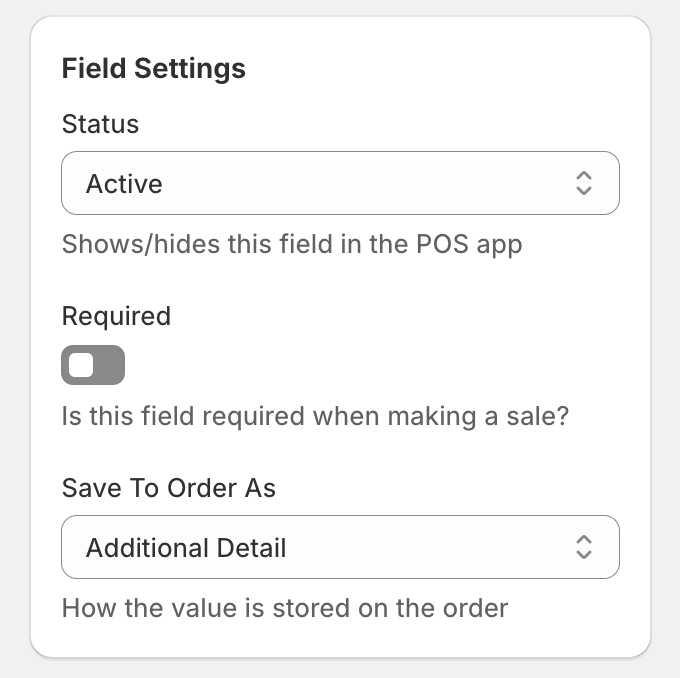
On a cart or post purchase field, set the Save To Order As setting to Additional Detail:
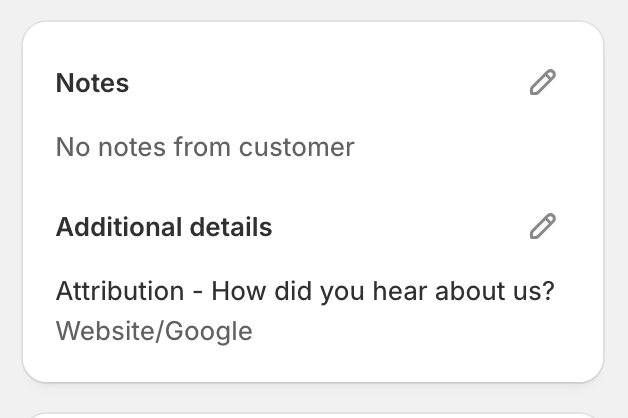
The field value entered in the POSify POS app will then be saved to the order as an additional detail:
Order tags
Follow the instructions below to save cart or post purchase field values as order tags, and to view them in Shopify Reports:
Creating the field
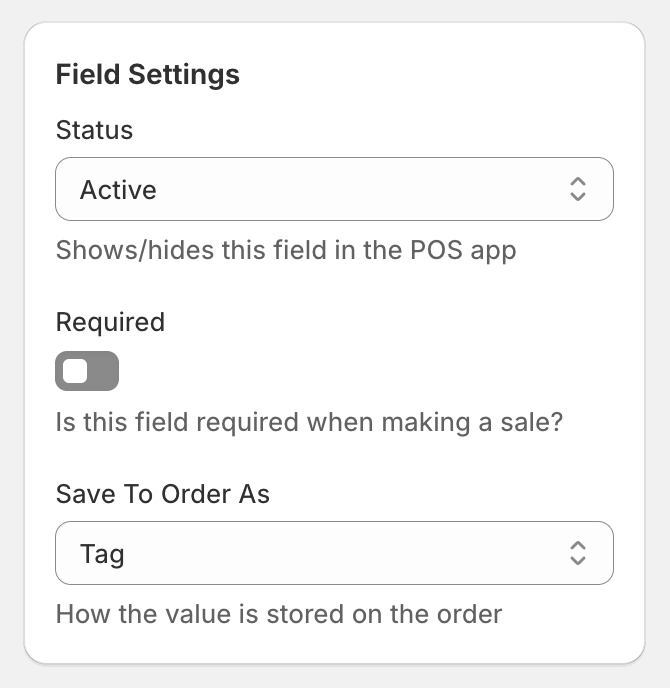
On the field, set the Save To Order As setting to Tag:
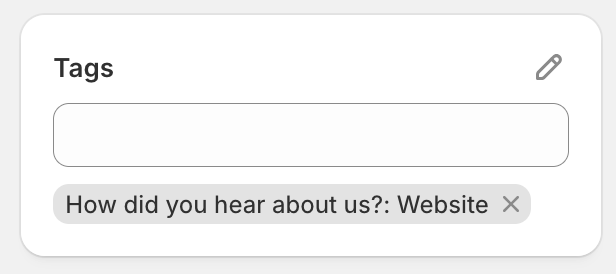
The field value entered in the POSify POS app will then be saved to the order as a tag:
Shopify Reports
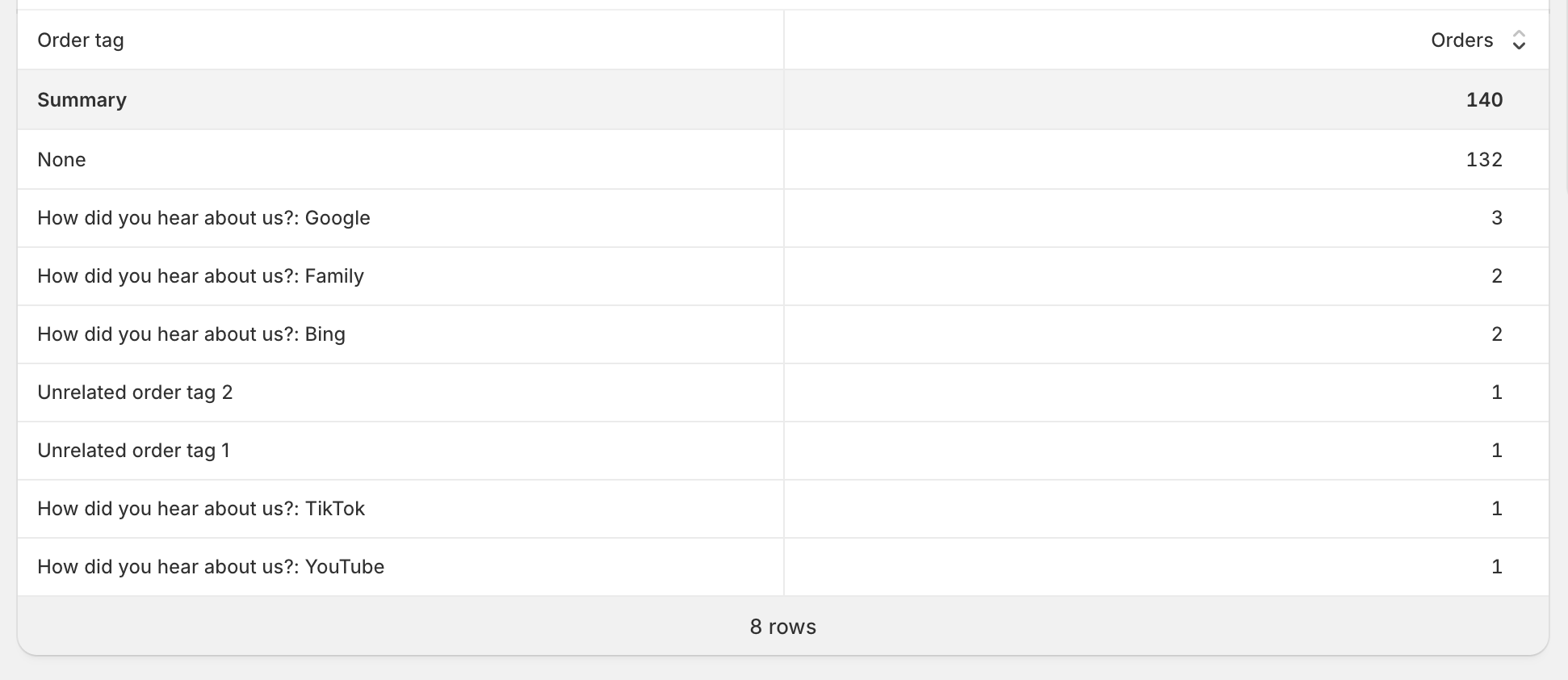
In Shopify Reports, the following example report can be run:
FROM sales
  SHOW orders
  GROUP BY order_tag WITH TOTALS
Caveats
- The entire tag length cannot exceed 40 characters. E.g. How did you hear about us?: Google would be 34 characters
- In the Shopify report, you cannot currently filter out order tags that aren't applicable - the report will return all order tags
Order metafields
Follow the instructions below to save cart or post purchase field values as order metafields, and to view them in Shopify Reports:
Creating the metafield definition
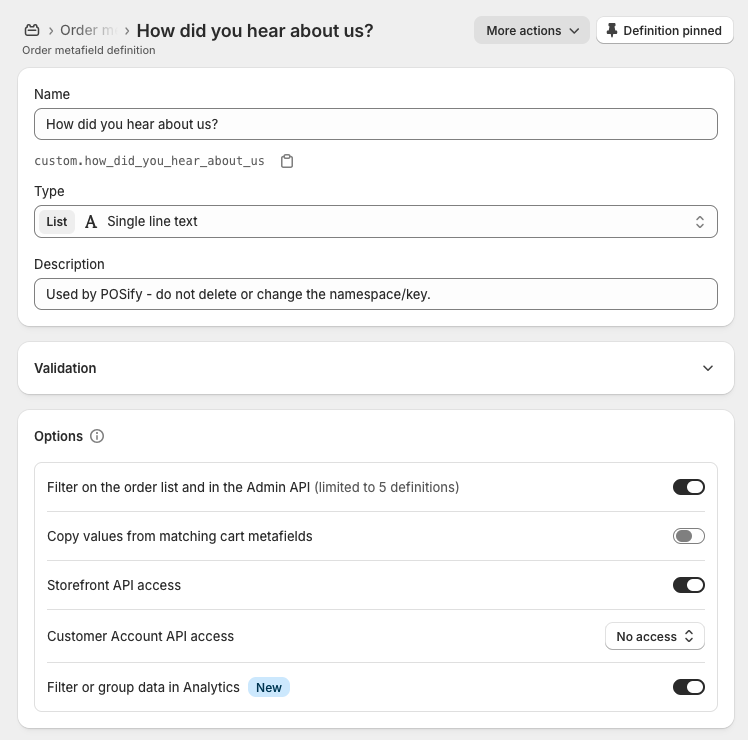
Before setting up your field in POSify, create an order metafield definition in Shopify:
- Name: The same/similar title of your POSify field
- Type: Single line text (list or singular) Multi-line text, or True/False
- Description: Used by POSify - do not delete or change namespace/key
- Filter on the order list and in Admin API: True
- Filter or group data in Analytics: True
Creating the field
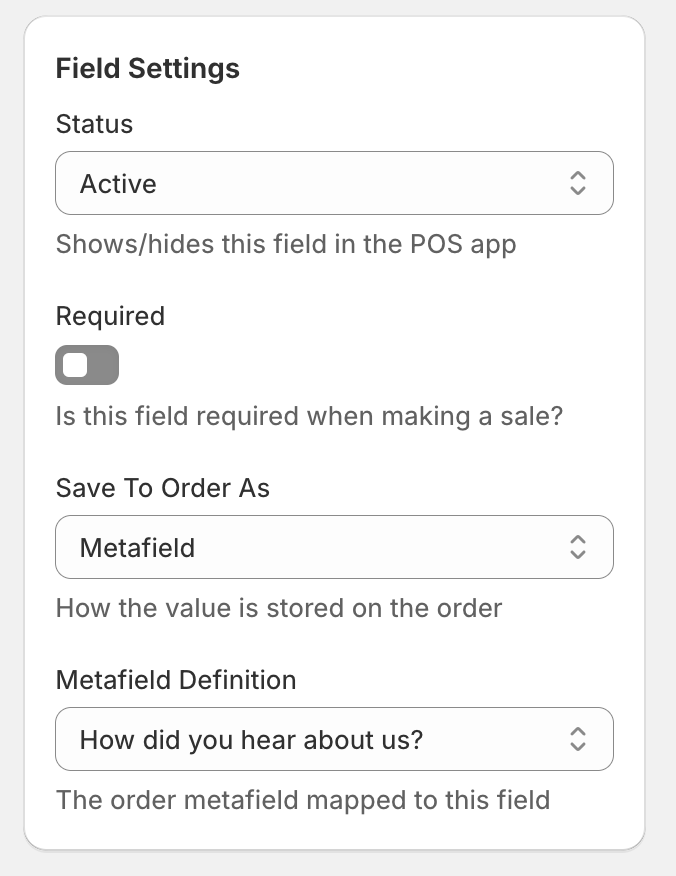
On the field, set the Save To Order As setting to Metafield, and then select the correct metafield definition in the Metafield Definition dropdown list:
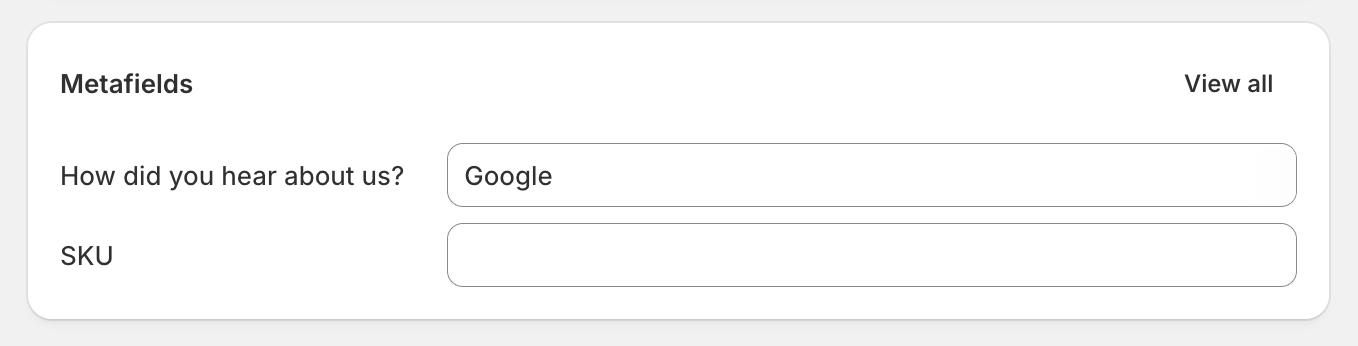
The field value entered in the POSify POS app will then be saved to the specified order metafield:
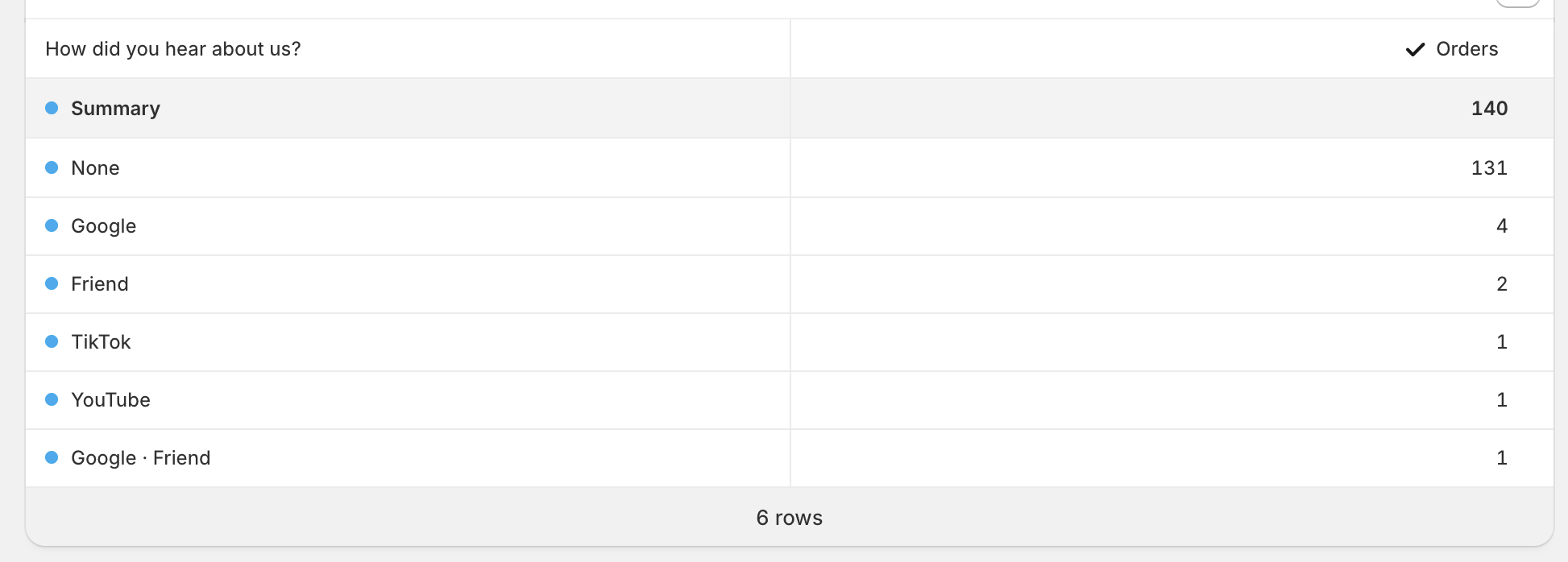
Shopify Reports
In Shopify Reports, the following example report can be run:
FROM sales
  SHOW orders
  GROUP BY order.metafields.custom.how_did_you_hear_about_us WITH TOTALS
Caveats
- When running the Shopify report, it's not possible to split up multiple values that a stored in a single metafield. E.g. if the saved values are ‘Google’ and ‘Friend’, Shopify will see this as a single value, instead of 2 separate values for ‘Google’ and ‘Friend’