How can I add customization fields to POS receipts?
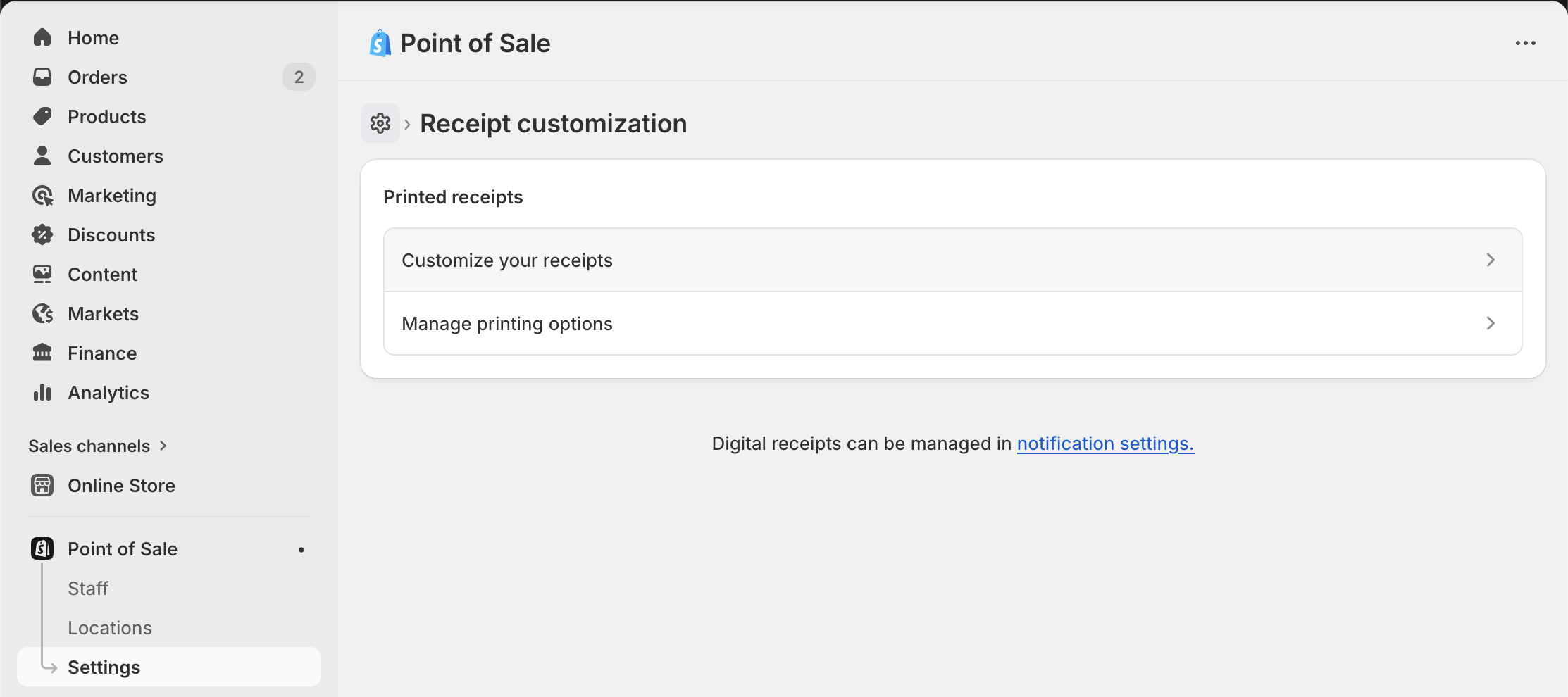
To add customization fields to your POS receipts, navigate to your Point of Sale sales channel in Shopify Admin, then click Customize your receipts from the Settings page:
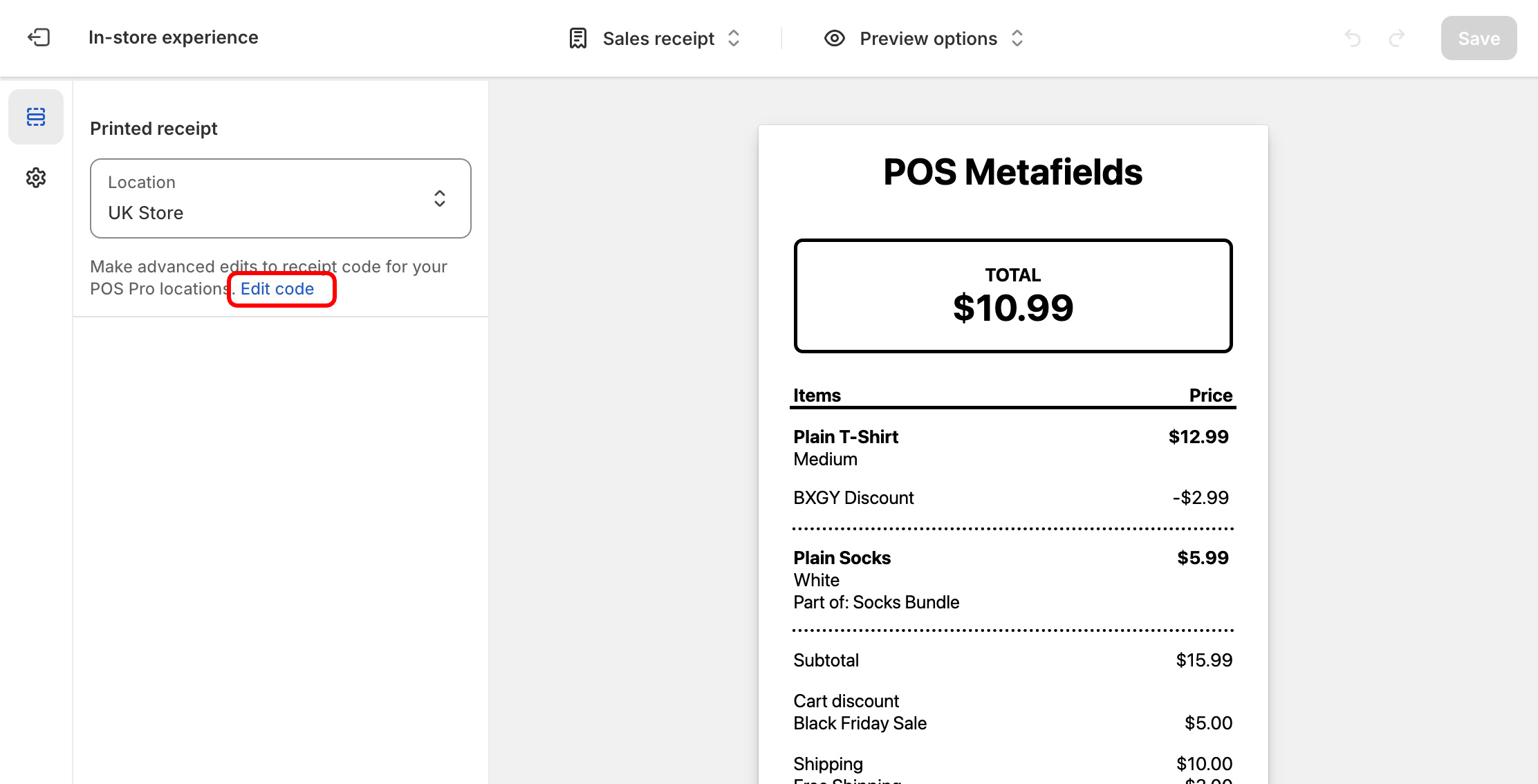
Select the correct POS location, and click Edit code:
This is open the receipt code editor. Select the line-items.liquid block from the list on the left:
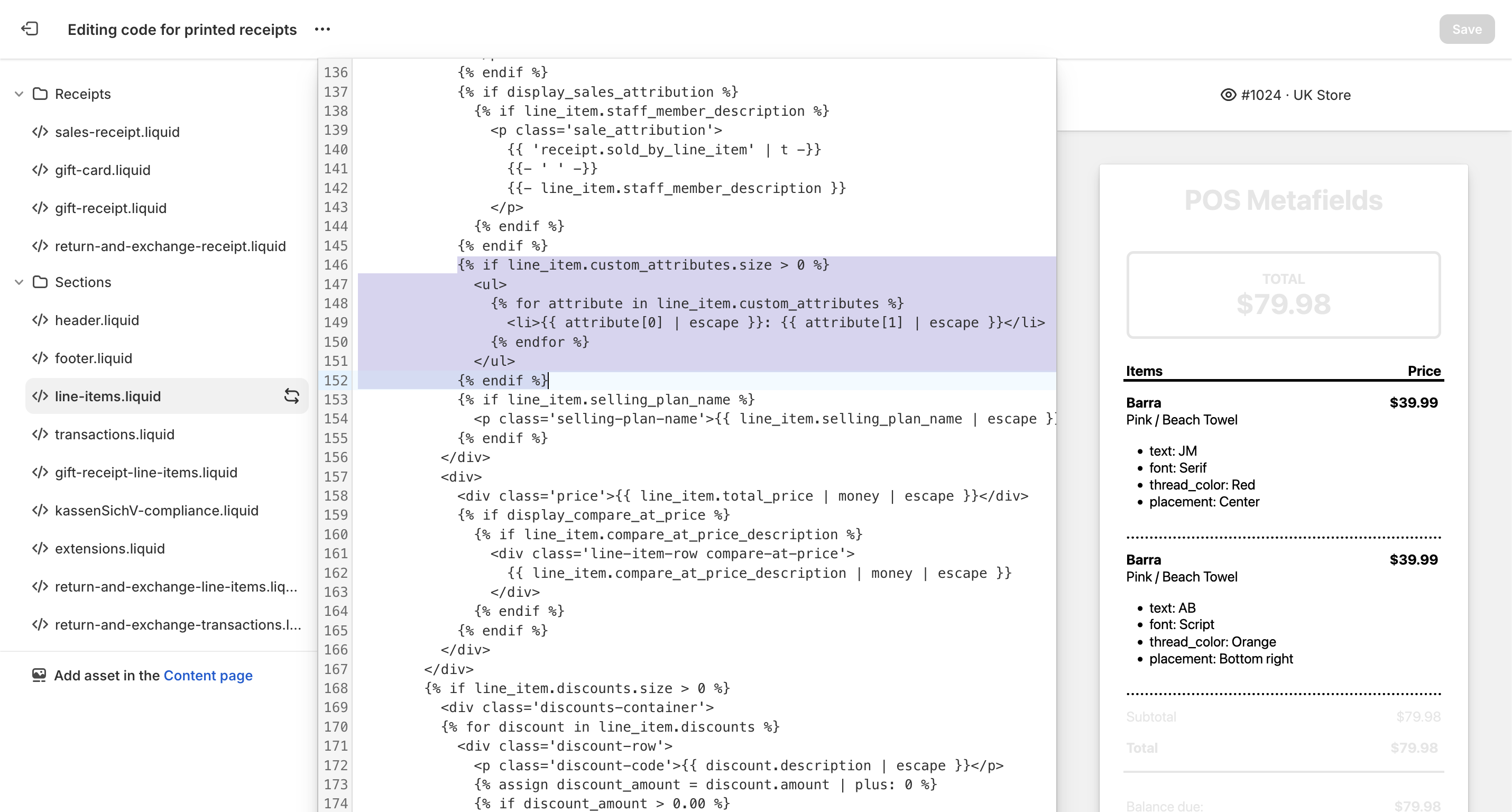
Remove the following line of code (it will be around line 149):
<li>{{ attribute[0] | escape }}: {{ attribute[1] | escape }}</li>
{% endif %}
Replace it with this line of code, which will correctly format the name and value of the customization field:
<li>{{ attribute[0] | escape| replace: '_', ' ' | capitalize }}: {{ attribute[1] | escape }}</li>
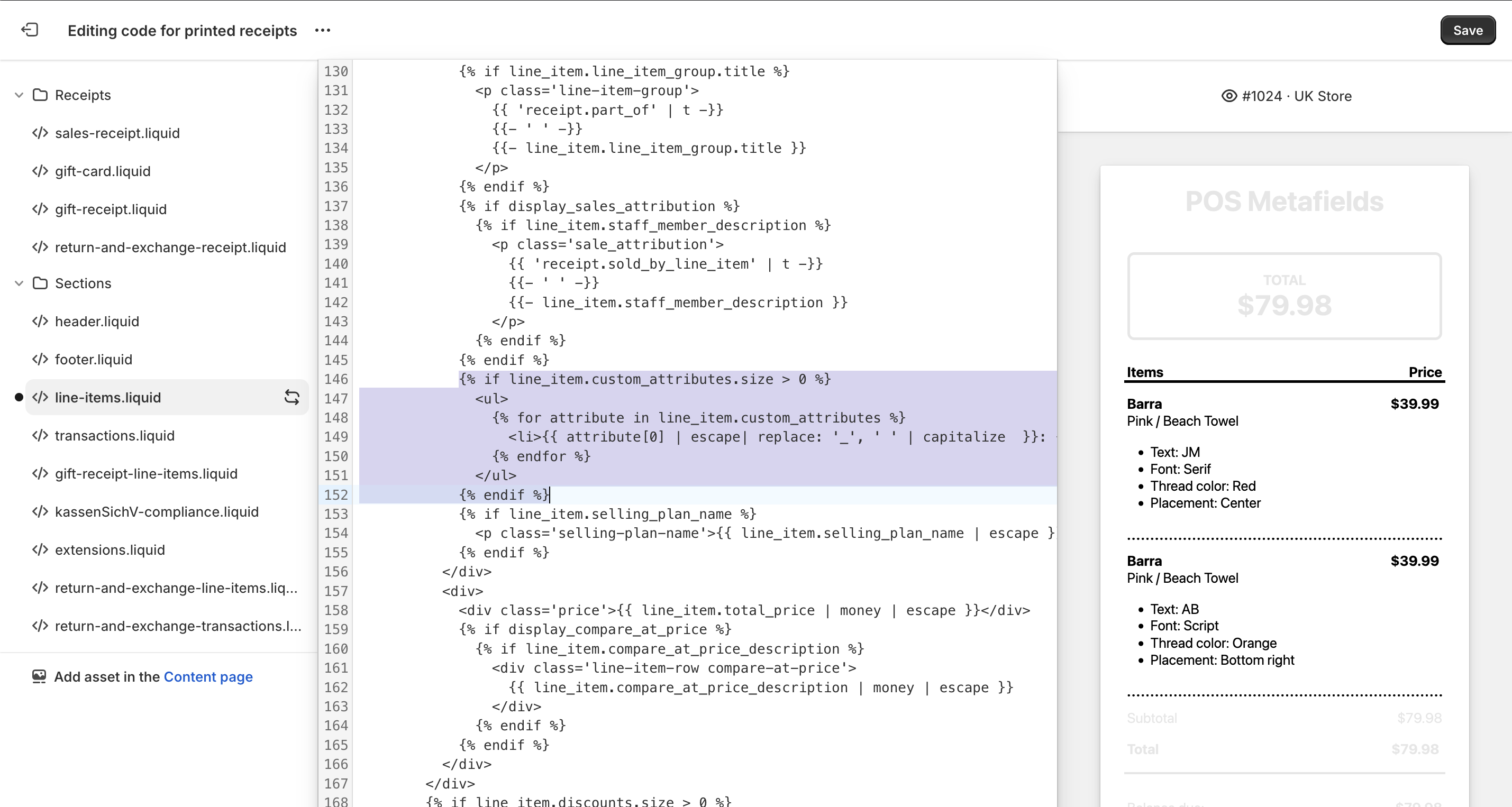
Finally, click Save in the top right corner. Your receipts will now display the customization fields and values.
If you'd like to only show specific customization fields on POS receipts, please read our How can I hide a customization field from a POS receipt? guide